


The latest update to our Countertop Designer tool
In this post, we’re gonna talk about our newest update to the Drawing feature. SlabWare has always been concerned with improving the way our clients experience our product. In our latest post, we talked about a new release for distributors: an innovative Customer Relationship Management to simplify the lives of those who are and who will be SlabWare users. Sometimes, enhancing the experience is not only about releasing new features but also about updating and improving the ones we already have. With that in mind, we come to introduce the latest update to our Drawing feature.
Drawing Setup Page: editing charging and pricing type
In this update, we’ve added some new functionalities to our countertop designer. The first one is a new Setup page, where you can set up the system to charge and price services according to the charging and pricing you already use in your countertop shop. For example, if you charge per cutout done, or charge per area cut, or per linear when fabricating a backsplash or an edge. It is super easy to set up, and there are many possibilities, to perfectly suit the system to your use!
Check out the video below to have a full tutorial on the video. It is important to note that learning the whole Drawing and Quoting process through SlabWare will spare you much time in the future. So invest a couple of minutes to learn these tricks and save hours in the days ahead by doing all the drawing and quoting directly in the system!

Preview the Quote with the Price Details screen
Another update on the new feature is the Price Details screen, which allows you to see how the charging options and items will be implemented on your Quote, before actually generating the Quote. In this screen, you can even edit the prices and the charging options for your items – exclusively for this Drawing (differently from the options edited on the Setup Screen, which will be applied to all Drawings done after that edition).
Check the video below to see the Price Details screen and how the editions made on the previous video on the Setup Screen will affect the result of your pricing and charging.

WARNING: As explained in the video above, any necessary edition to the quote or the list of items (TO ADD OR REMOVE ITEMS) should be done directly on the Drawing page. If those additions or removals are done on the Price Details page or on the Quote page, PROBLEMS MAY OCCUR.
Pay attention to the image below showing you the red warning message:


Coloring the Edges to make it easier to identify them
Looking to improve the way you perceive information about the edges when drawing them, our team has developed a color system to identify each type of edge you add to your drawing. So now, you can choose the colors for your edges simply by clicking on the “Setup” icon in the left-side menu on the drawing screen (check on the images above) – and the color you select here will be displayed on each edge on your Drawing. Please check out the image below to see the selection and its result. You can now easily distinguish between finished edges, backsplash, appliances, waterfall, and all other types of edges that have been added to the drawing.


And the result of your color adjustments as displayed on the Drawing page. Also, pay attention to the Setup button (the gear icon) on the left-side menu to know where to find it:


New PDF template: show more organization with a cleaner information display
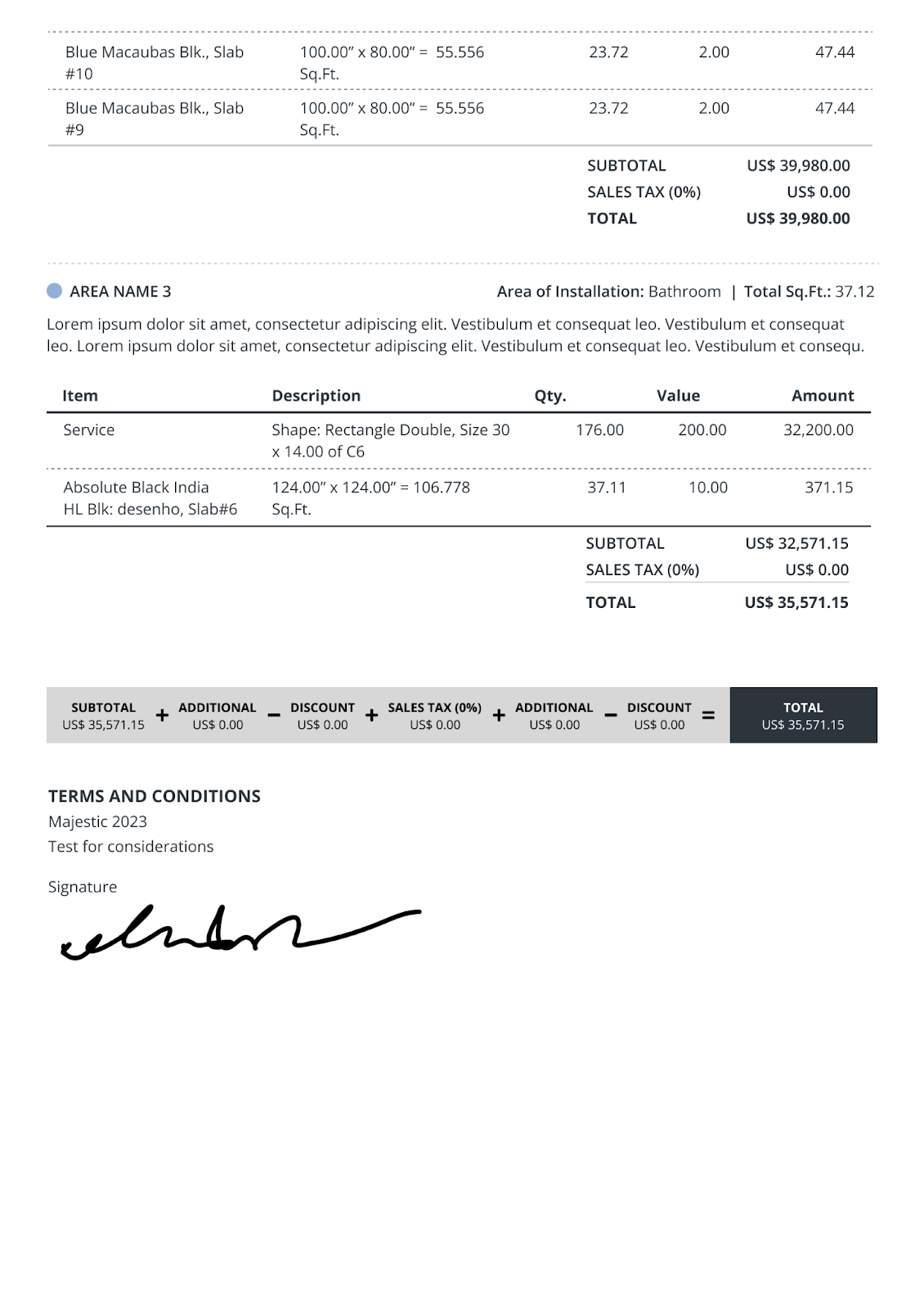
Besides organizing the way you see the information on your drawings, we have developed a new PDF template for the Quote with a cleaner display to help you and your customers visualize information in an easier and clearer way. At the top of the page, we have organized the way the information about the company and logo is displayed. Moreover, we’ve added the colors of each area to help you quickly find the information by simply looking at which area they belong to. Please check the images below.

Now it’s your turn!
We hope this post has been helpful in explaining the system’s usage and all of its updates. We understand that it might take some time to get used to the new functionalities. Therefore, SlabWare’s entire team is at your disposal to solve any problems and answer any questions that may arise when browsing through the updated Draw feature or to schedule a training session.
Efficiency is the keyword here, so we invite you to invest a little of your time to SCHEDULE A DEMO with our team and learn how to use SlabWare to speed up your workflow. You will have much more free time with much less effort to achieve better results in all your jobs.
We hope that our new Draw functionalities will prove themselves useful and helpful in the long term. Since SlabWare is made with the feedback of our clients, we would appreciate any comments that might help us improve the system even more.
If you need any further information, you can find it on our blog and YouTube channel. You can also contact us or Schedule a Training if you are already a client, or Schedule a Demo if you aren’t a client yet.
We at SlabWare wish everyone good sales!