
Every quote you send has a number that doesn't show up on it: how much of that price is actually yours. In SlabWare, the Profit window shows that number for each quote and invoice, and lets you set your prices from the profit you want to keep.
Here's how it works, step by step, on a real countertop quote: 64.58 sq ft of Oriental White at US$ 22.00 per sq ft.
1. Open the Profit window
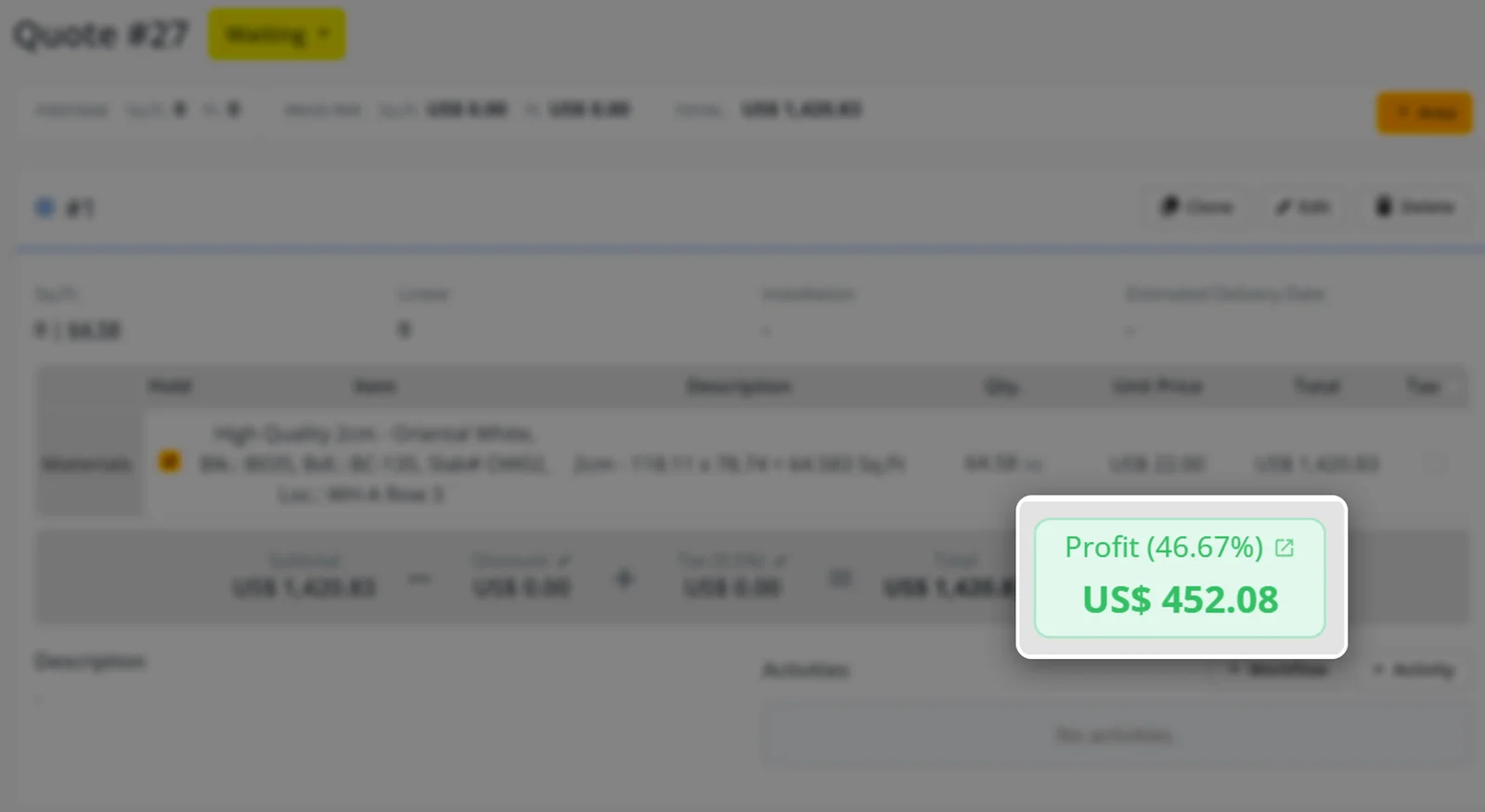
Open any quote or invoice. In the totals bar, right under the items, there's a green Profit box. It already shows the profit of that quote in dollars, with the markup in parentheses. Click it to open the Profit window.
2. Read the Summary
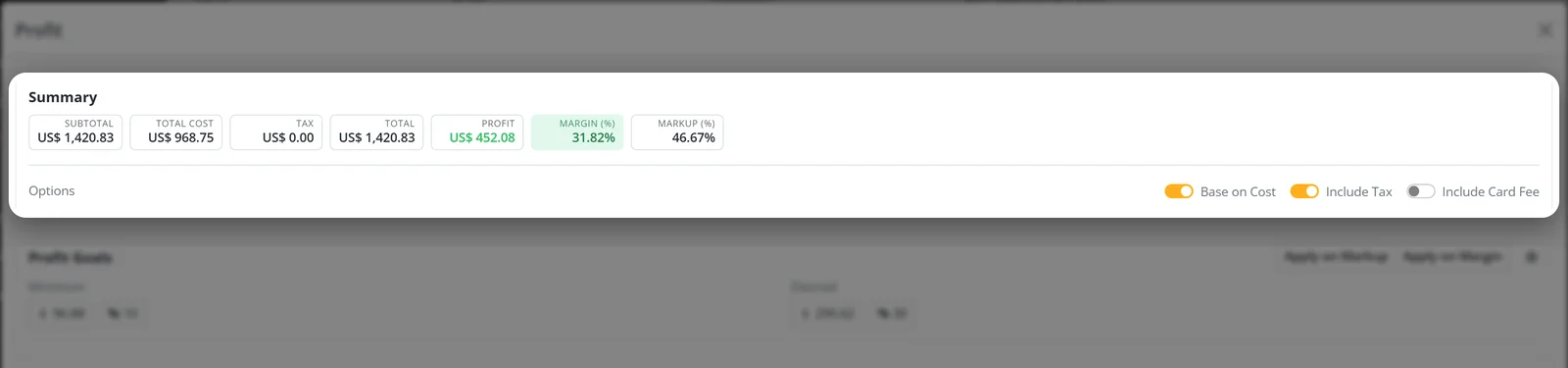
The Summary at the top puts the whole quote in one line:
- Subtotal: what you're charging for the items.
- Total Cost: what those items cost you.
- Tax and Total: the sales tax and the final amount.
- Profit: Subtotal minus Total Cost.
- Margin (%): profit as a share of the price. Here, US$ 452.08 out of US$ 1,420.83 = 31.82%.
- Markup (%): profit as a share of the cost. Here, US$ 452.08 over US$ 968.75 = 46.67%.
Under Options, the Include Tax and Include Card Fee switches choose whether the sales tax and the card fee count in the calculation.
3. Set your profit goals
In Profit Goals you keep two targets for the quote: the Minimum profit you accept working with and the Desired profit, each as a percentage, with the dollar amount next to it. In this quote, the minimum is 10% (US$ 96.88) and the desired is 30% (US$ 290.62). Use the gear icon next to the buttons to change them.

4. Check every item: price, cost, margin and markup
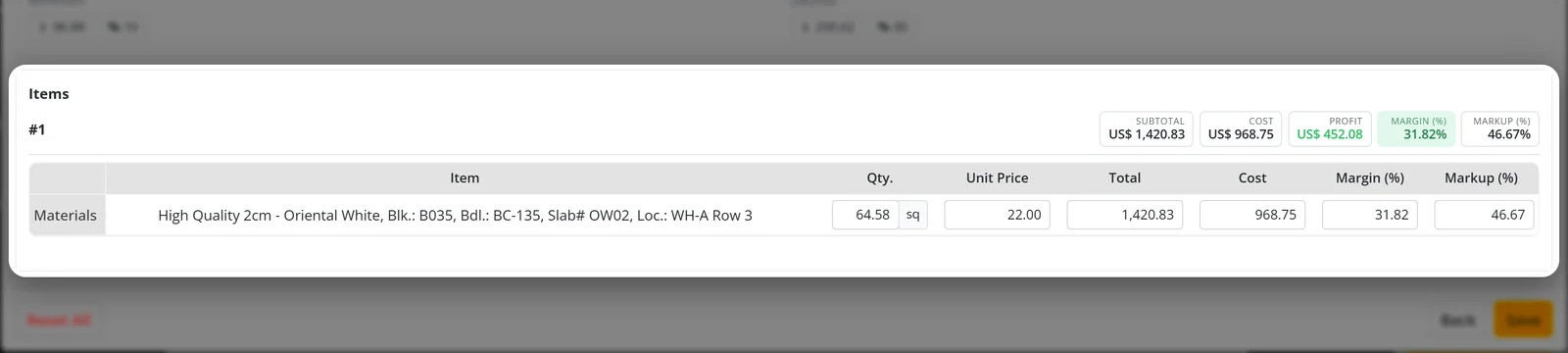
Under Items, each area of the quote has its own totals and one line per item, with Qty., Unit Price, Total, Cost, Margin (%) and Markup (%).
Your profit is only as right as the cost you enter. If an item has its cost at 0.00, its margin shows 100% and the whole quote looks better than it is. Fill in the Cost column and the margin and markup update while you type.
Here, the slab costs US$ 968.75 (US$ 15.00 per sq ft) and sells for US$ 1,420.83: a 46.67% markup.
5. Apply your goal to the prices
Now the useful part. Say the customer asks for a better price, and you're fine going down to your desired 30%. Click Apply on Markup. SlabWare asks you to confirm and tells you exactly what will happen: prices are recalculated from cost, using the 30% markup.
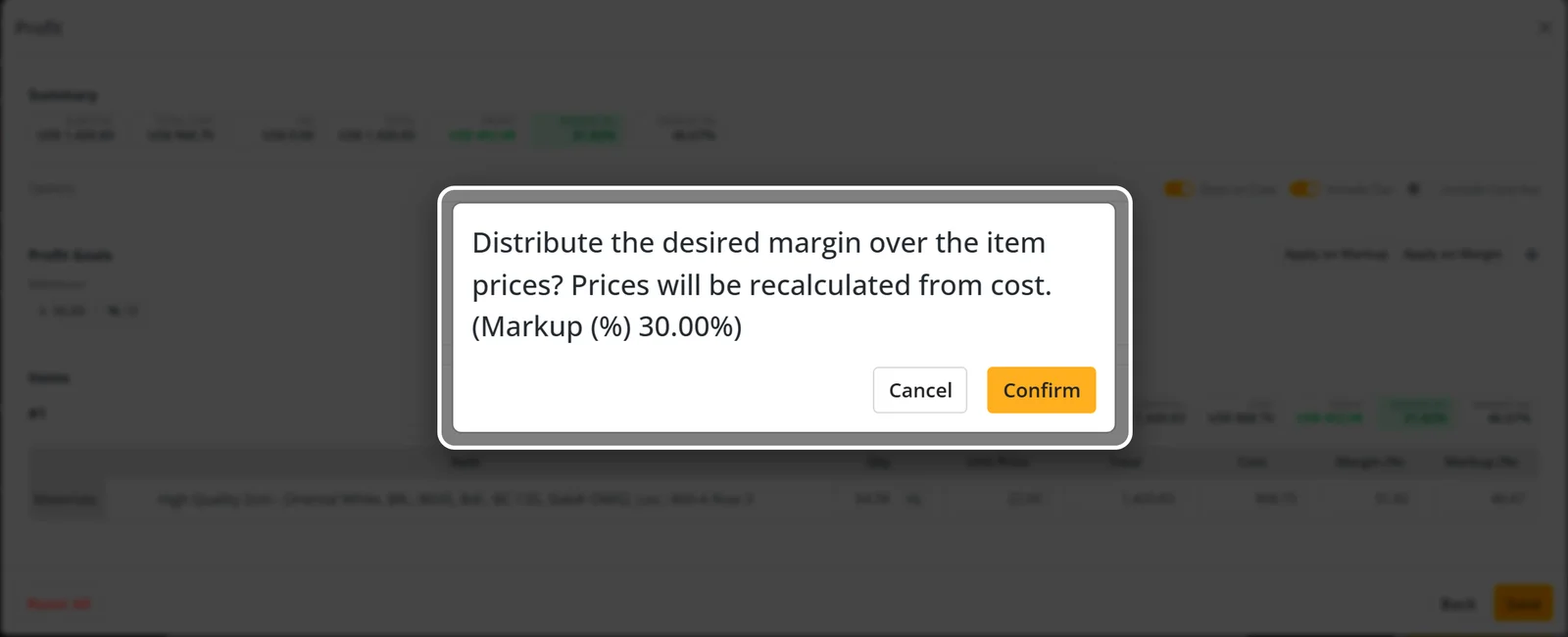
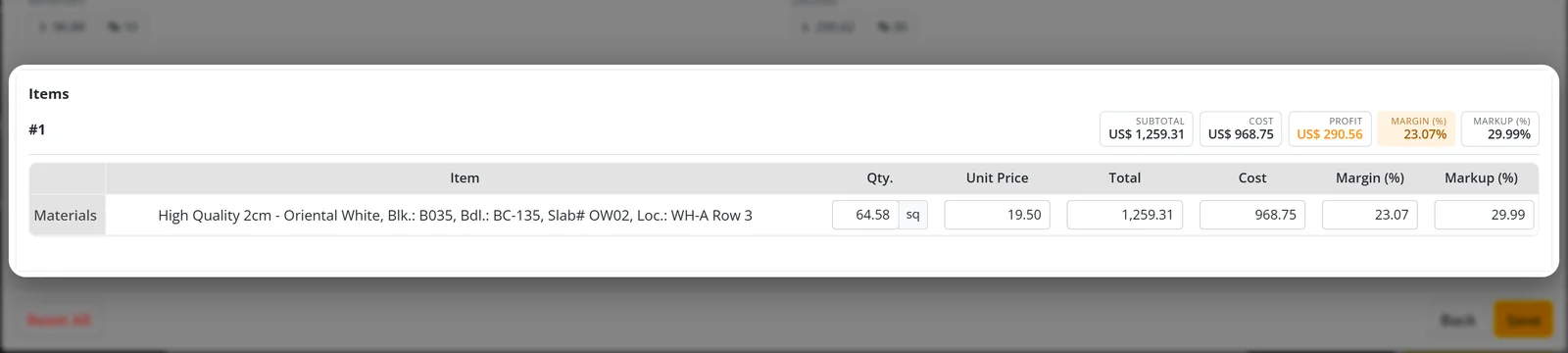
Click Confirm and every unit price is recalculated from its cost. In this quote, the price per sq ft goes from US$ 22.00 to US$ 19.50, the subtotal goes from US$ 1,420.83 to US$ 1,259.31, and you know before sending it that US$ 290.56 of it stays with you.
6. Save, or go back
Click Save to keep the new prices in the quote. If you were only checking, click Back and nothing changes.
Try it on your next quote
Open a quote in your SlabWare, click the Profit box and fill in your costs. In a couple of minutes you'll know how much each job really leaves in your pocket.
Keep reading