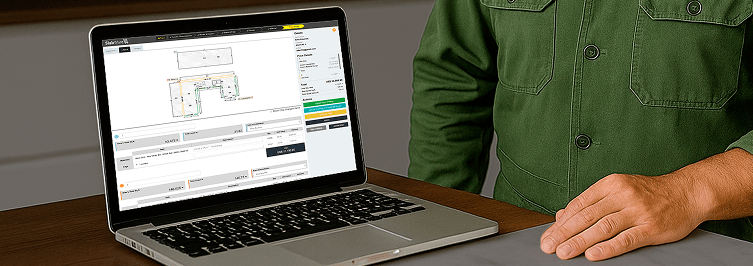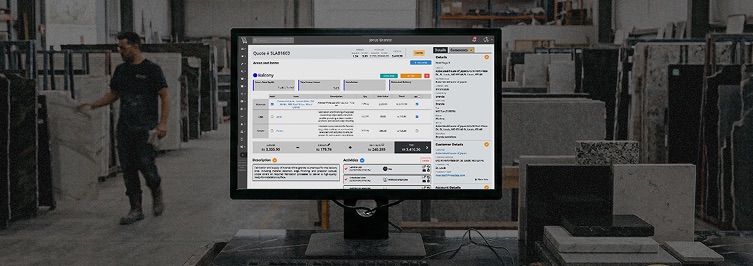

In the latest update to your SlabWare, a huge change has been made to the quote.
Before, you could only apply taxes and discounts to the total amount of the quote – or invoice.
Now, you can apply them to individual items, which will give you more flexibility and control when negotiating with your customers.
Tag along this tutorial post to see how the feature works and how to take the best our of it.
1. Accessing the feature:
On your SlabWare, on the left-side menu, find Orders > List of Orders.
Select a Quote or an Invoice:
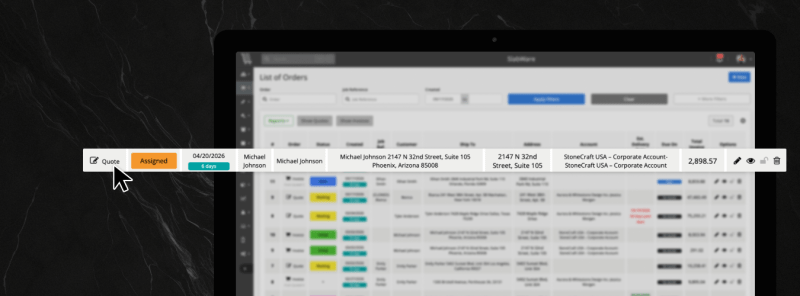
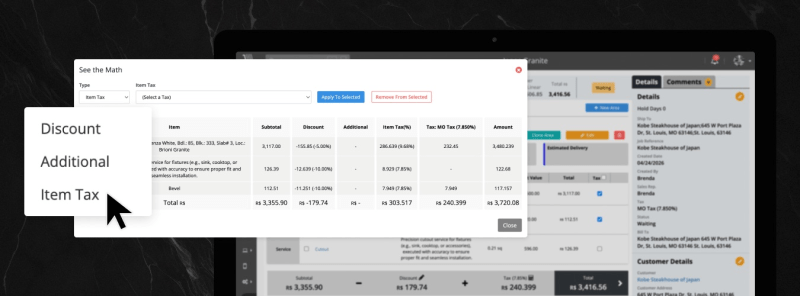
On the section “Areas & Items’, where you can see each area’s total measurements, price and details, click on the field “Discount” or in the field “Tax”
A new screen will appear. In this example, we’ve clicked the “Tax” field.
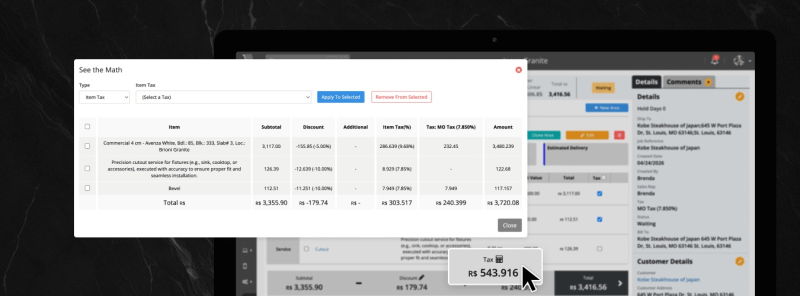
2. Customizing each Item’s discount and others
Inside this new window that opened, you can choose whether you want to add a discount, an additional value, or even set one of the taxes you have (that you have previously set inside the system).
In simple terms: select the discount, additional, or tax > select the items you want to apply that value > then click the blue button “Apply to selected”
In case you are using a discount, you can also select if you want that discount to be applied before taxes or post-taxes. For that, you check – or uncheck – the checkbox Post-Taxed. See the image below.
You can also use the buttons $ and % to determine if the value you typed will be discounted (or added) as a percentage of the total, or as a fixed value discounted or added to the total.
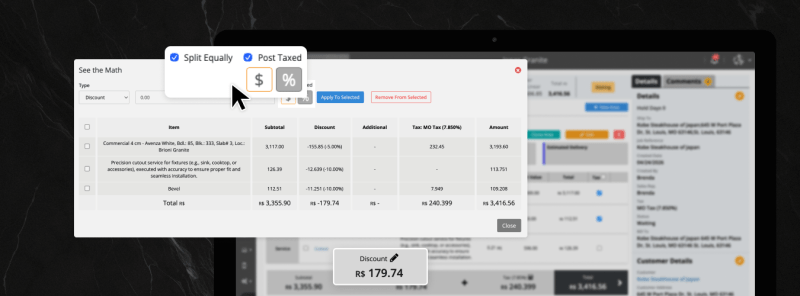
in the image above, if you’re giving a fixed-value discount, you can use the checkbox “Split Equally” to split the values equally between all items in the order.
If you prefer, instead of using the checkbox and splitting equally, you can apply different discounts to each item.
Simply type the discount – or additional – that you want to set, select the item on the list, and click the blue button “Apply to selected”
💡Automatic Sync: All the documents related to that order will be automatically updated, such as PDFs, packing list, forms, and emails.
3. Configuring the feature on your Setup
Access Order > Setup, scroll down to the section PDF Default Settings, find the column Items.
In that column, you have 3 new checkboxes:
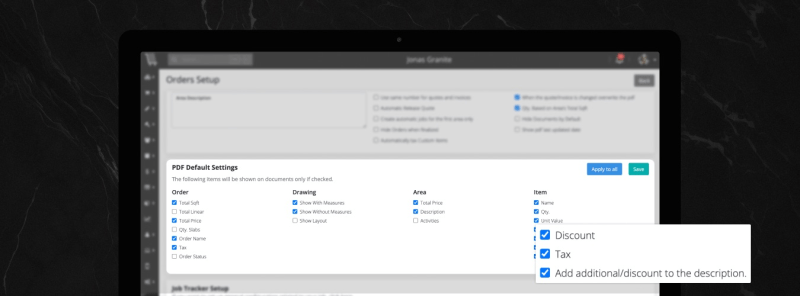
This is the functionality they have when they’re checked:
- 1 – Discount: The information about the Discount will be automatically shown on that Quote/Invoice’s PDFs.
- 2 – Tax: The information about the Tax will be automatically shown on that Quote/Invoice’s PDFs.
- 3 – Add additional/discount to the description: The Discount or Additional values will be included directly in the product/service description inside the document.
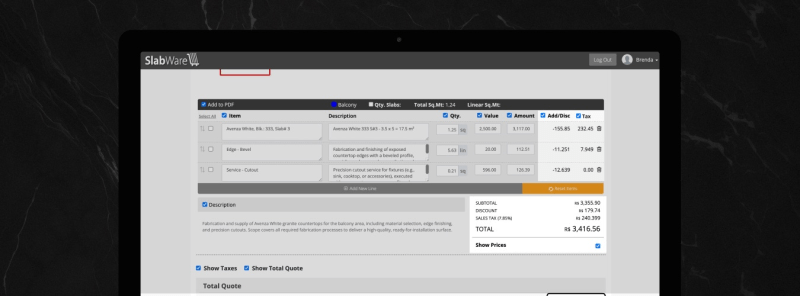
That way, when you generate the quote or invoice’s PDF document, those information will appear as it follows:
4. If you have any questions
Or need any quick assistance, you can contact us at:
Whatsapp: +55 (27) 99844-3145
Brazil: +55 (27) 3534-5652
USA: (316) 243-2559
Or at the email:
info@slabware.com
Or check out our blog’s other posts for tips and tricks to better manage your shop and increase your profit.
Keep reading