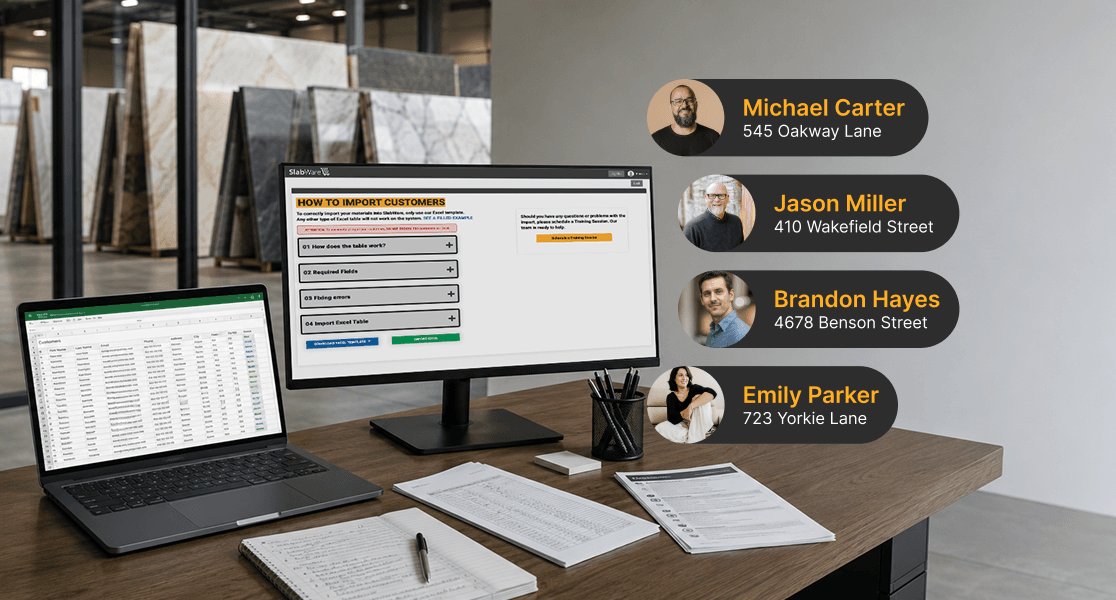

Many new users question during onboarding what is the easiest way to import their data into SlabWare, whatever it is: customers, slabs, suppliers, materials they work with, etc.
In this tutorial, we’re gonna go through the process of importing your customers into the system.
So if you’ve just started using SlabWare, tag along!
1. Getting started
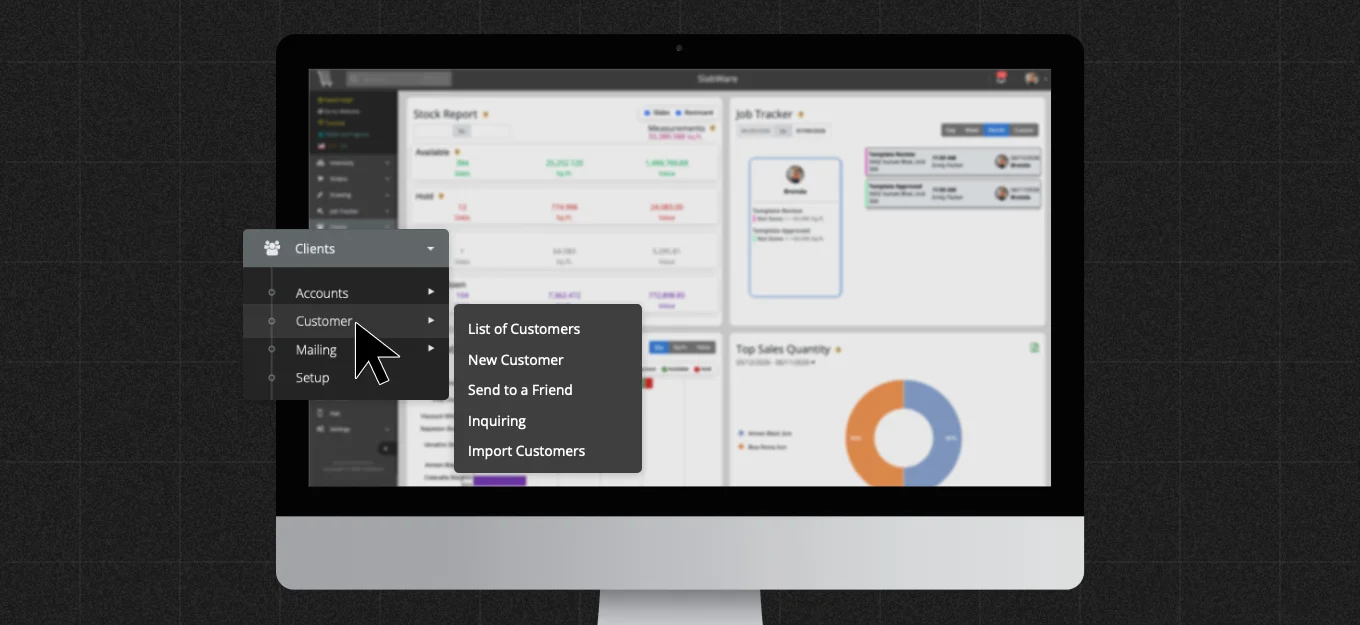
On the main menu, on the left side, click Clients > Customer > Import Customer.
On the next page that will open, you’ll find the step by step guide to import your customers into the system.
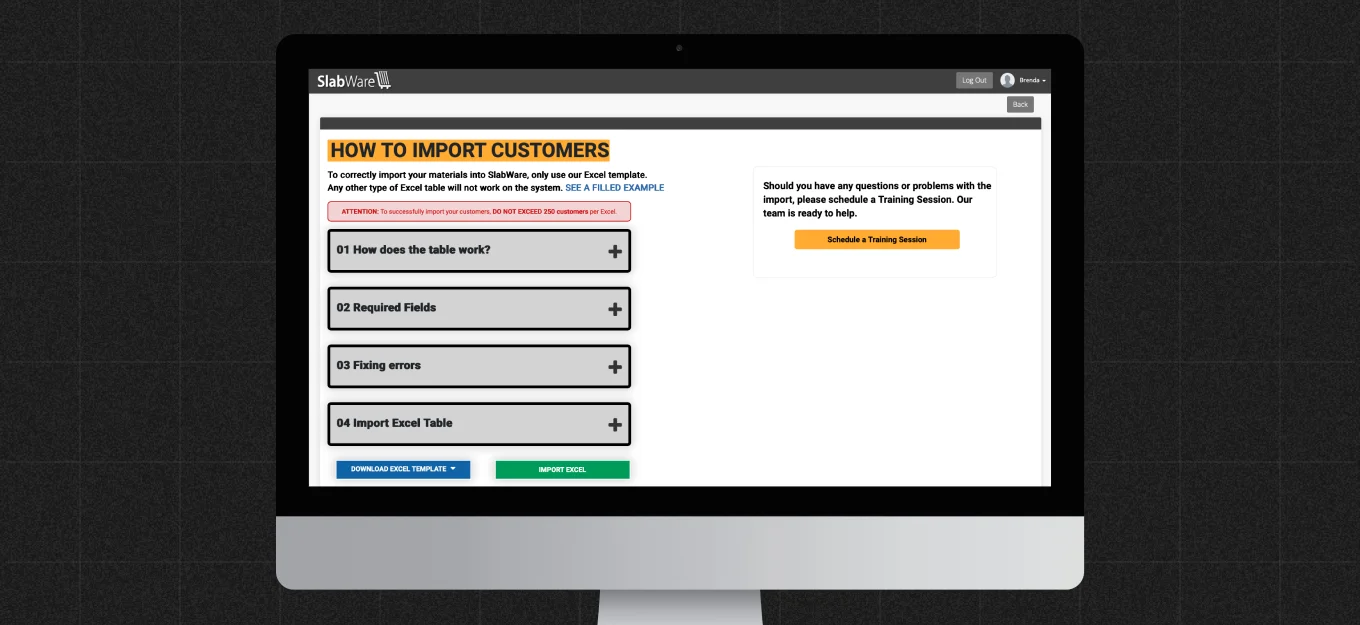
To import your customers, you’re gonna simply fill in an Excel file we provide, and then upload it into your SlabWare.
As simple as that!
Before continuing, remember that the system allows you to import a maximum of 250 customers per Excel file.
That means that your Excel spreadsheet can have a maximum of 250 rows.
2. Downloading the template and filling it out
To download the spreadsheet you have to fill in with your customers' information. Click the blue button below, “Download Filled Example” and then click Template.
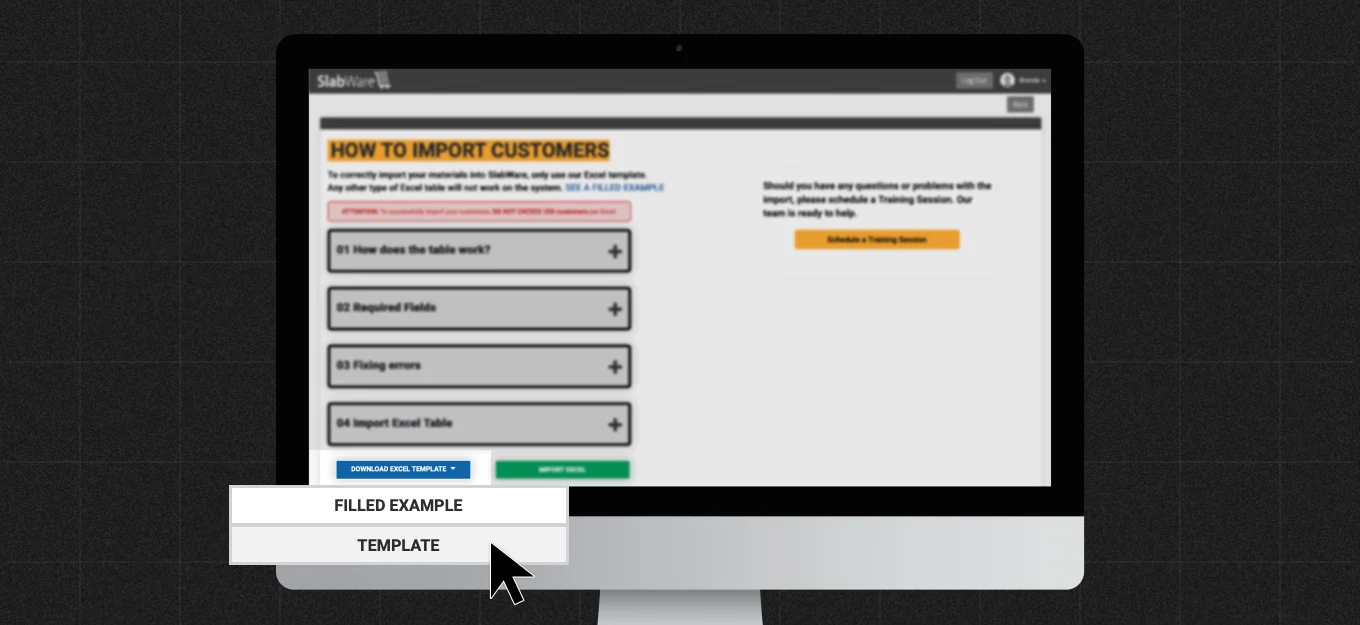
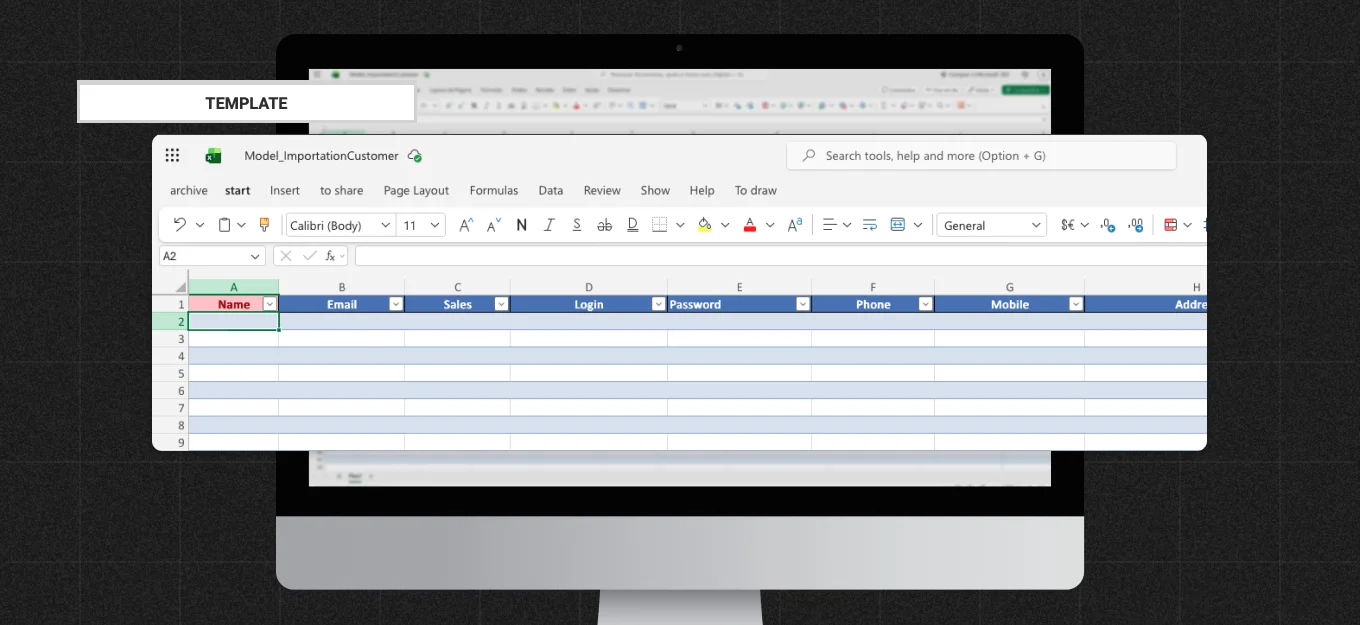
Open up the downloaded file and fill in with your customers' information.
Each customer goes in a different row.
Be aware that the columns in red are mandatory: if you don’t fill them in correctly, the system won’t import your data, and will inform you about errors that have happened.
On the other hand, the columns in blue are optional: you can enter that data or not, it won’t generate mistakes.
3. Example
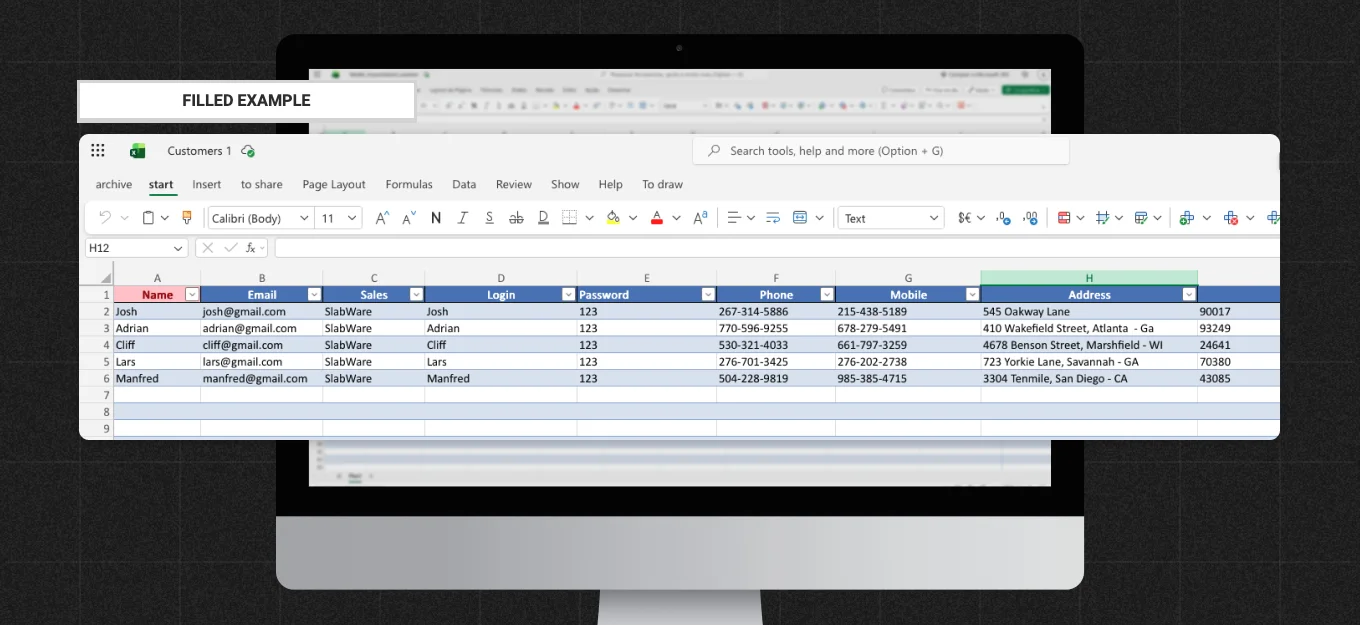
If you need an example with a spreadsheet that has already been filled out, click on the blue button “Download Excel Template” and then click “Filled Example”.
You’ll see an image with the rows already filled out, so you can replicate it in your model, with your customers’ data.
4. About the field Status
The Status field is the last column on your spreadsheet model.
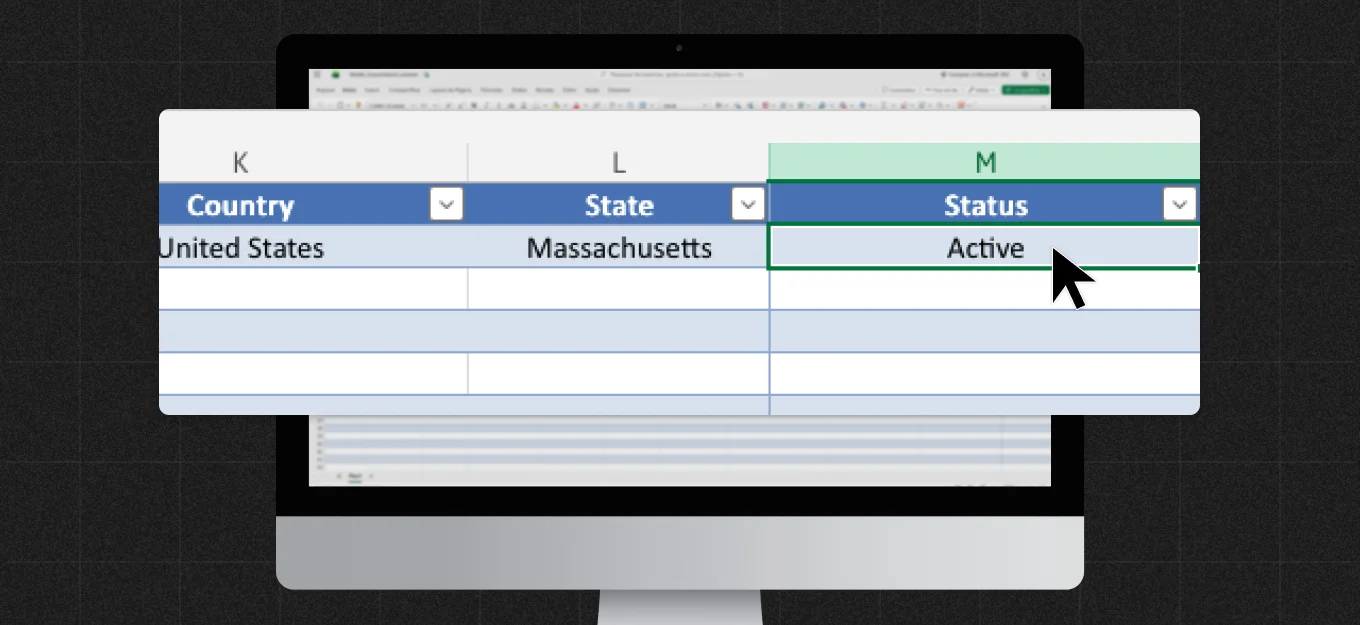
This column will control the statuses of your customers, such as Active, Inactive, Prospect, or any other you find useful.
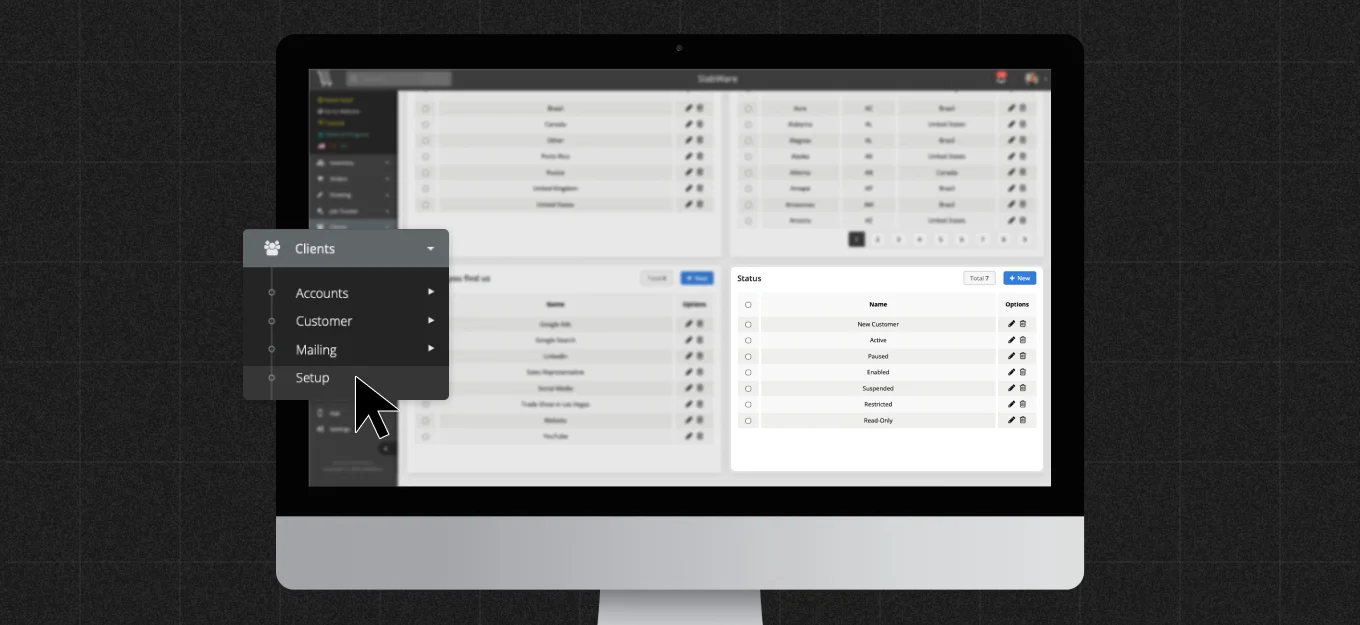
What you write here must be the same as your system is configured to support. In other words, it must be one of your Status previously defined in the Customer Setup page.
To find that page and define your Status, go to the main menu and click Clients > Setup. On that page, find the section Status.
5. Importing the ready file
When you finish filling in the spreadsheet, save it.
Then go back to the importation screen, and this time click Import Excel.
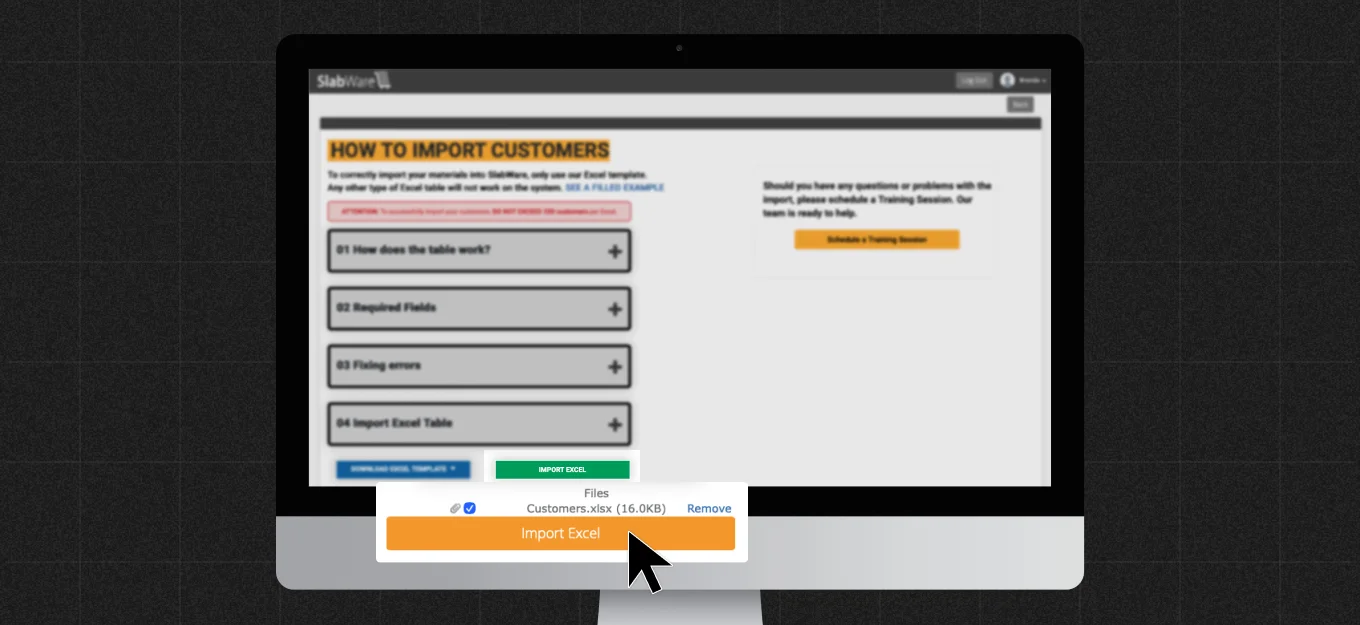
Select the file from your computer and click the yellow Import Excel.
If any errors happen during the import process, the system will show the in this step.
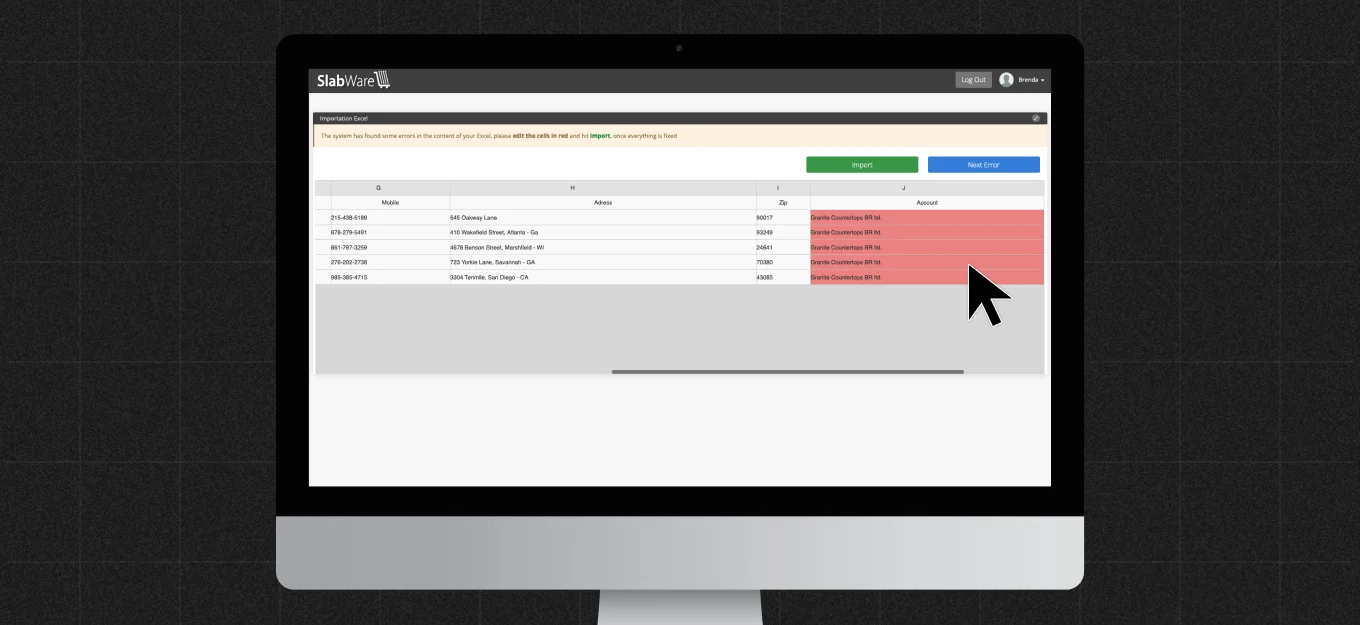
For example, in the column Sales Rep., the system may not identify the entered users, or they might not have been registered in the system.
You’ll have the chance to correct any errors that happen in this same screen.
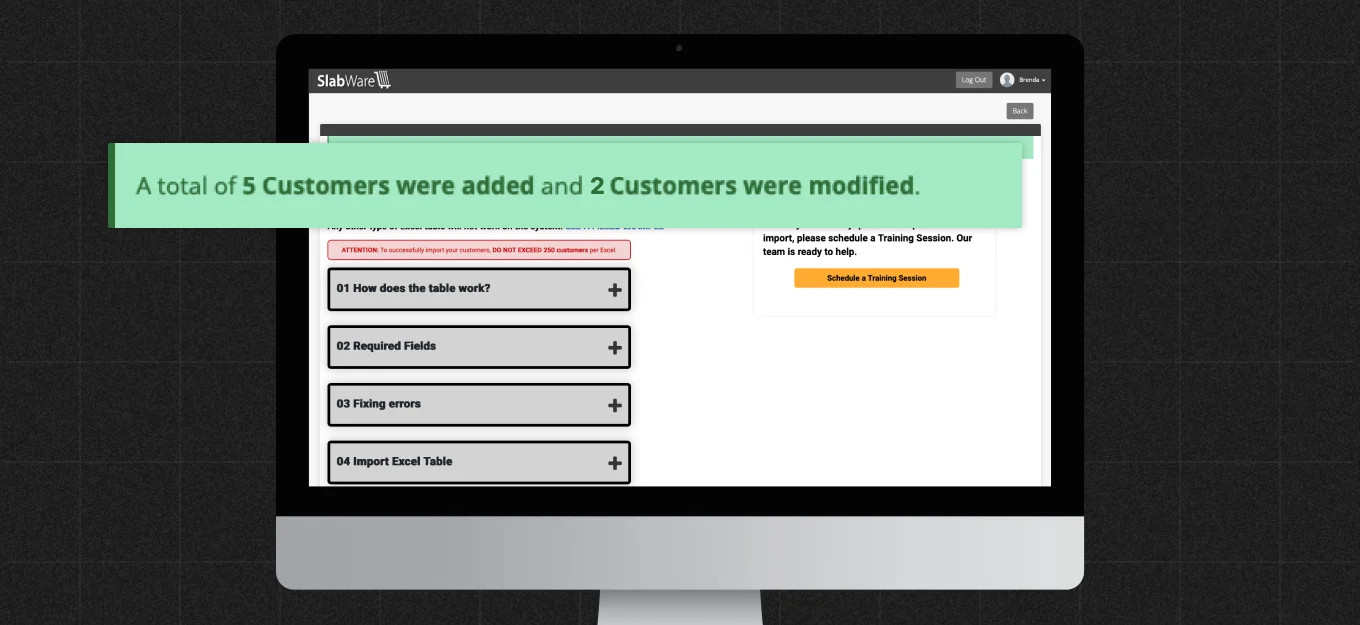
Once the import is done, the system will show you a message telling how many customers have been imported.
6. Conclusion: SlabWare is the tool you need!
If you’d like to see a video of this tutorial, please refer to our Youtube channel
Stay tuned for other tutorials and news in our blog.
And if you have other questions, you can contact us here.
Keep reading