
If you prefer, you can watch this tutorial in video, in our YouTube channel.
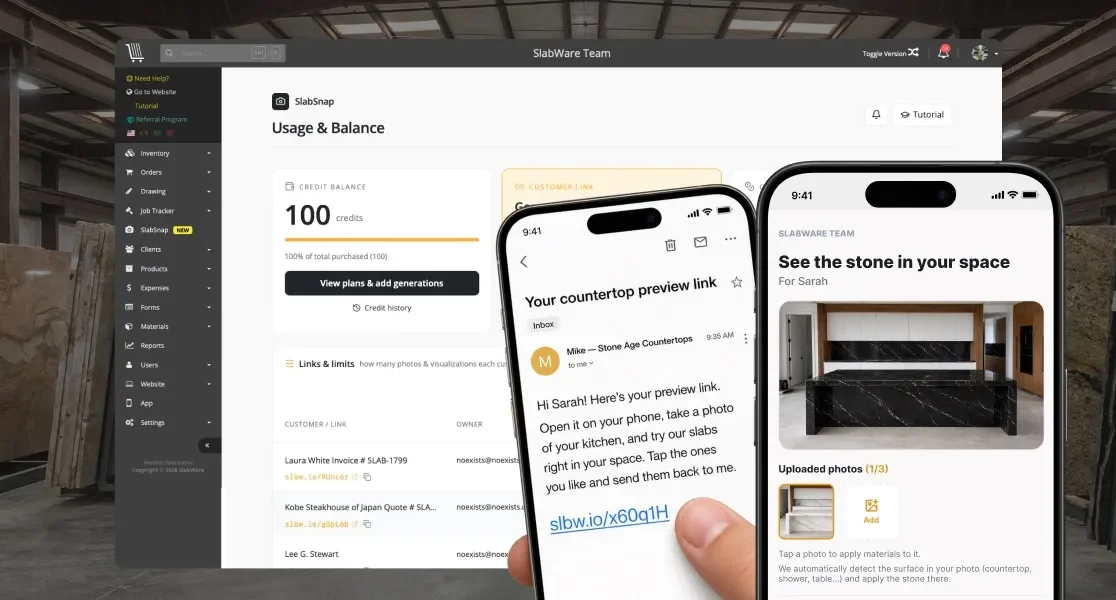
Helping homeowners visualize natural stone or quartz in their space is one of the hardest parts of closing a stone fabrication sale. SlabSnap, a powerful feature built directly into SlabWare, solves this by letting your clients snap or upload a photo of their kitchen, bathroom, or surface and instantly render your actual slab inventory onto their space.
This step-by-step tutorial covers how to set up materials, send interactive links to clients, manage generation credits, and use SlabSnap directly inside your sales quotes.
📍 Step 1: Navigating to SlabSnap & Material Setup
Log in to your SlabWare account.
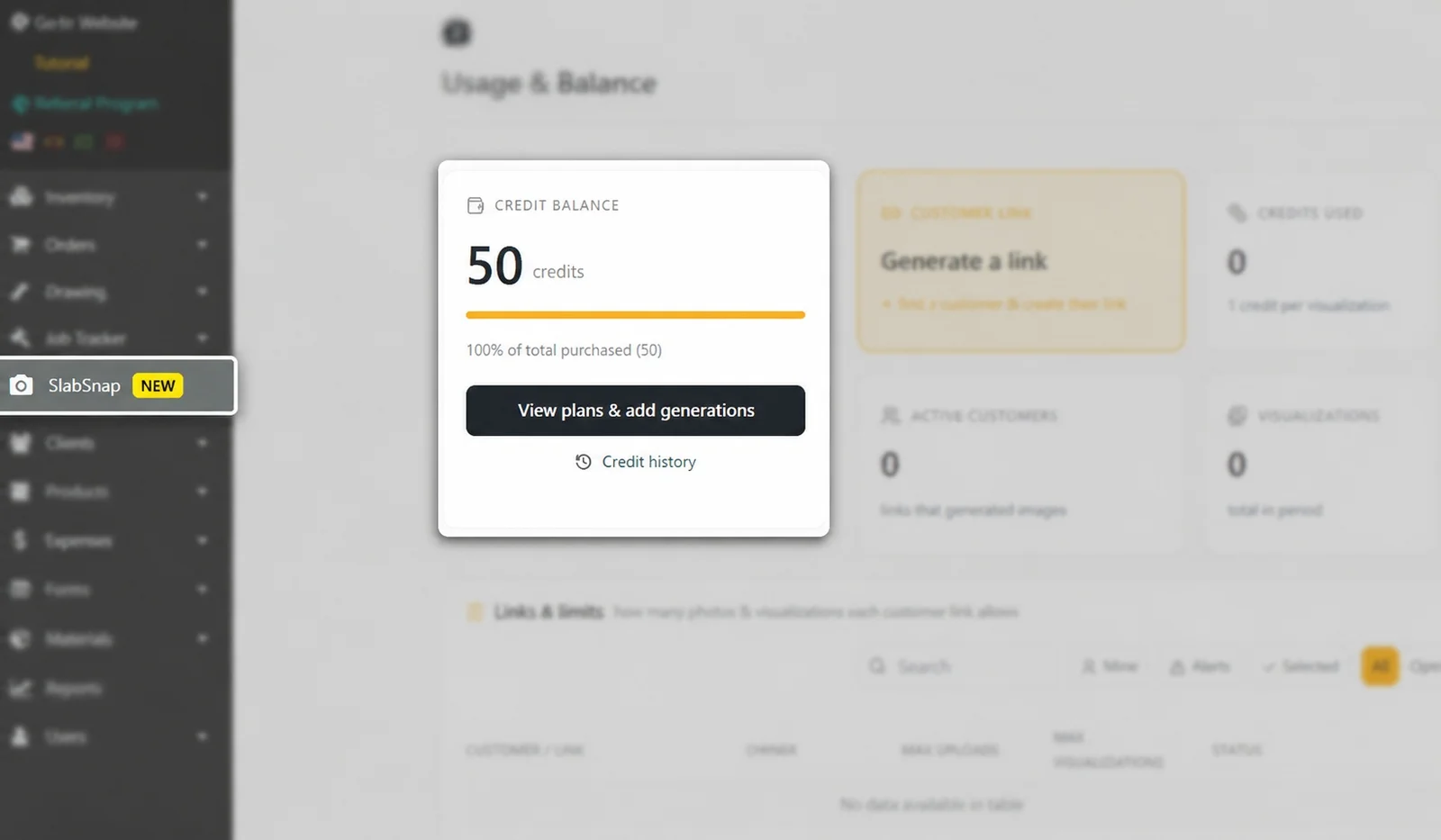
In the main menu, click the Camera Icon (marked with a yellow NEW badge) to open SlabSnap.
Free Trial Credits: Every account receives 5 free test credits automatically.
Linking or Adding Materials
Before clients can visualize stone options, materials must be connected to the SlabSnap renderer:
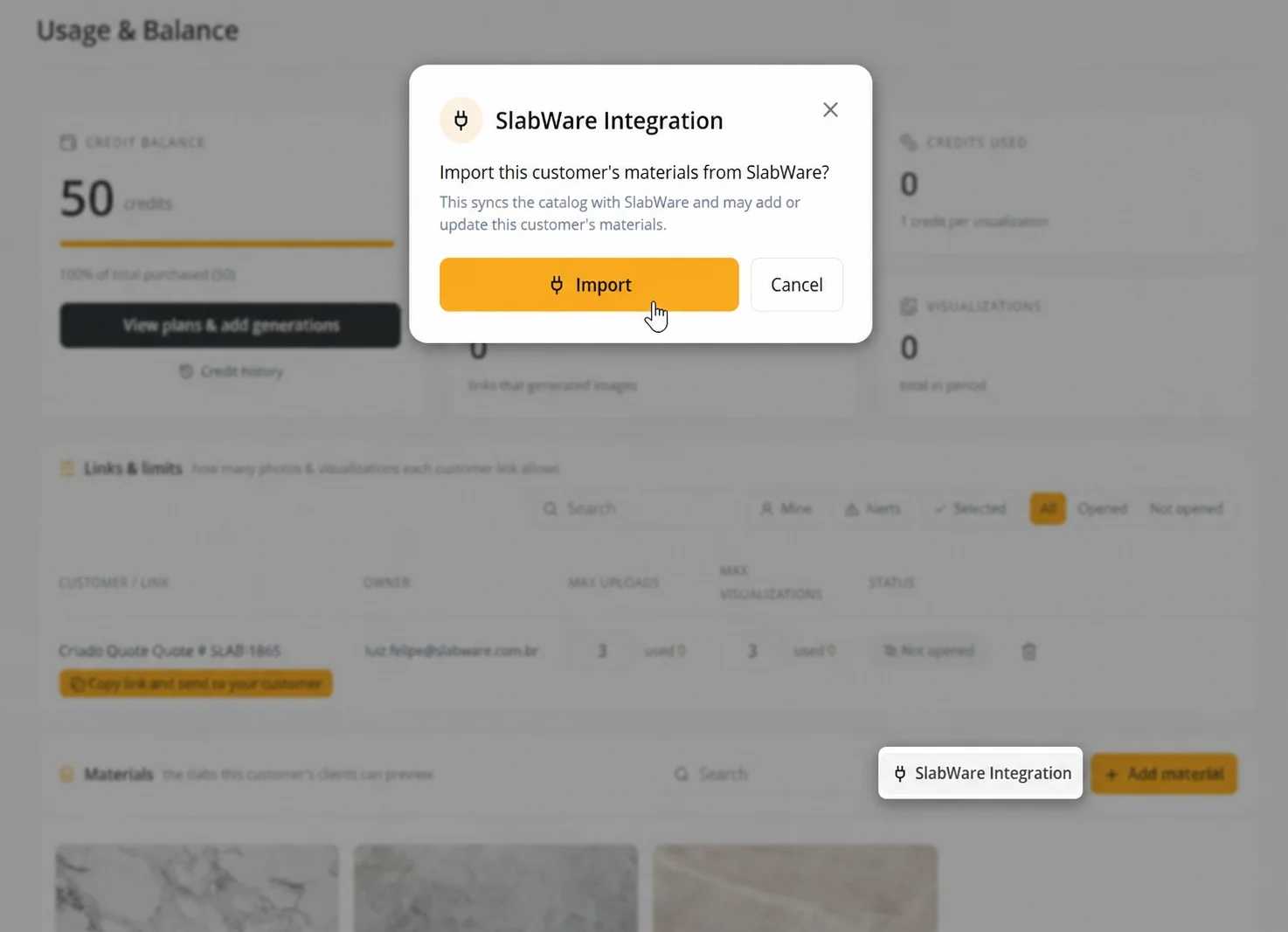
SlabWare Integration (Import): Automatically pull materials and slab photos already registered in your main inventory.
Add Manually: Click + Add Material, upload a high-resolution stone image, enter the Material Name, select the Type (e.g., Granite, Marble, Quartzite), choose the Color, and click Add Material.
🔗 Step 2: Generating and Customizing Customer Links
Instead of having clients download an app, SlabSnap generates a lightweight web link unique to each buyer.
Click Generate a Link.
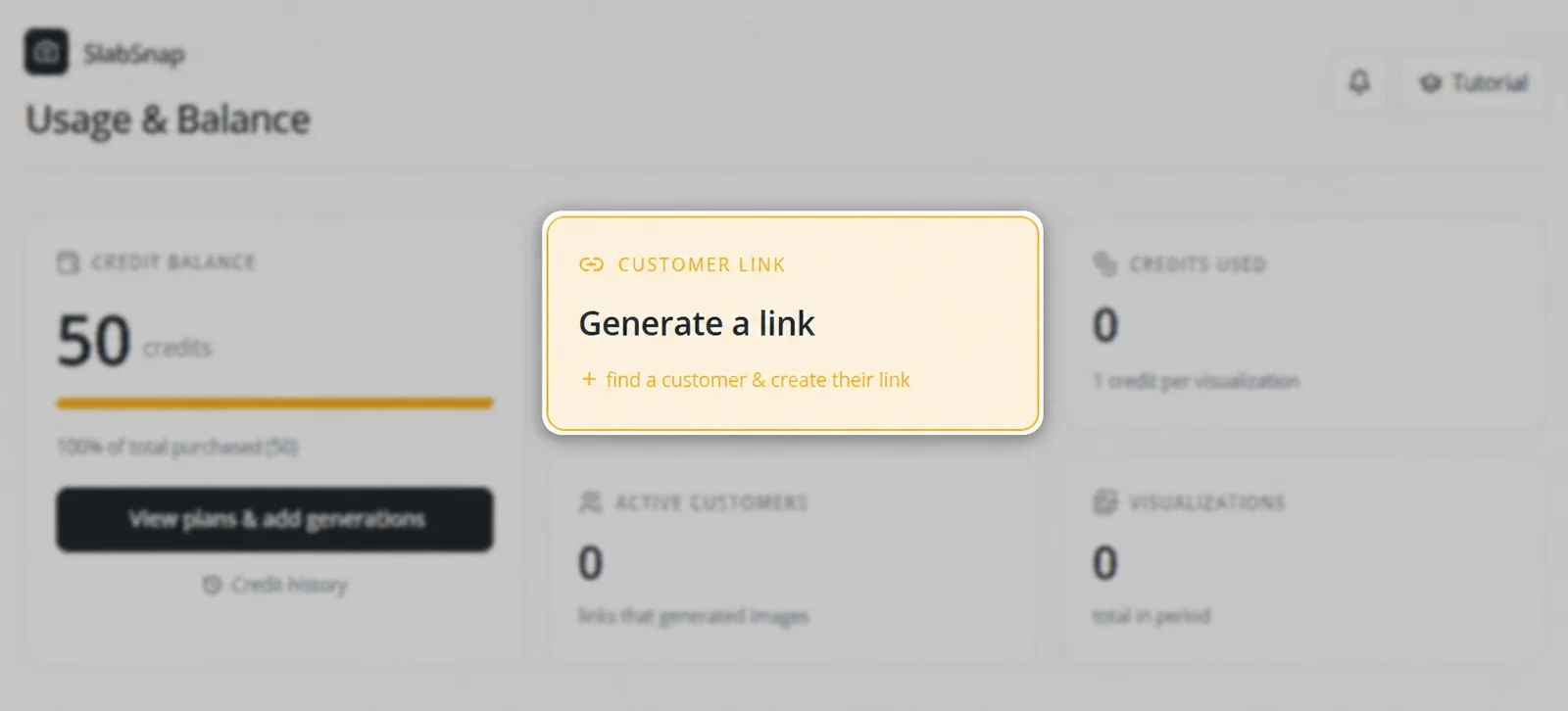
Enter the Customer’s Name.
Set Upload & Visualization Limits: Define how many photo uploads and rendering attempts this specific client is allowed (e.g., 3 uploads, 3 renderings).
Click Create Link For [Customer Name].
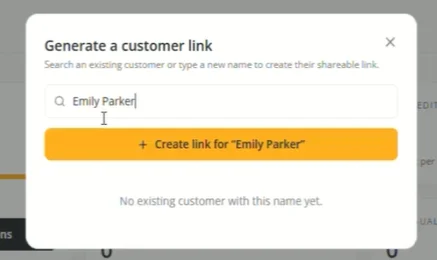
Copy the custom URL and text/email it directly to your client.
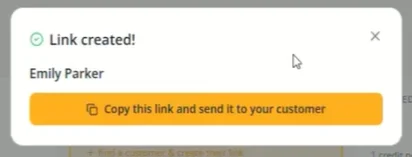
🖼️ Step 3: The Client Experience (Taking Photos & Rendering)
When your client opens the link on their smartphone or computer:
They click Take or Upload a Photo to submit a picture of their current countertop, vanity, or floor.
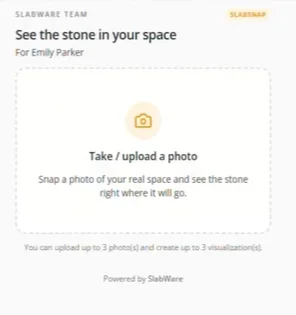
They select a stone material from your available catalog (e.g., Calacatta, Cristallo, or Taj Mahal).
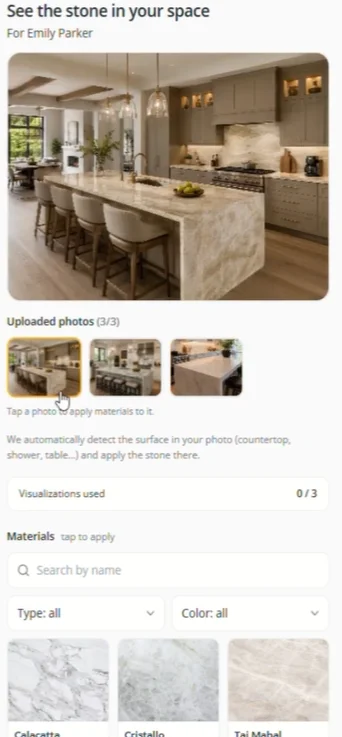
AI Rendering: SlabSnap renders the chosen stone onto the surface in real time.
Interactive Controls:
Before / After Toggle: Compare the original room photo with the rendered stone option.
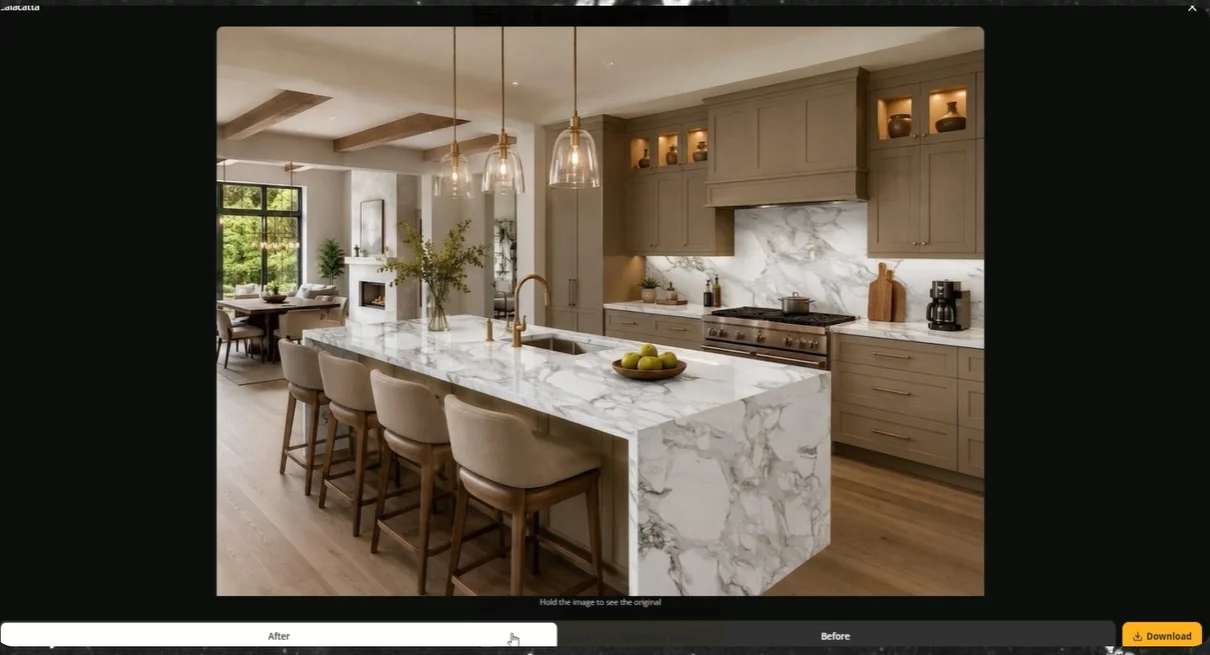
Download / Download All: Save individual high-res images or download all test options in a single .zip file.
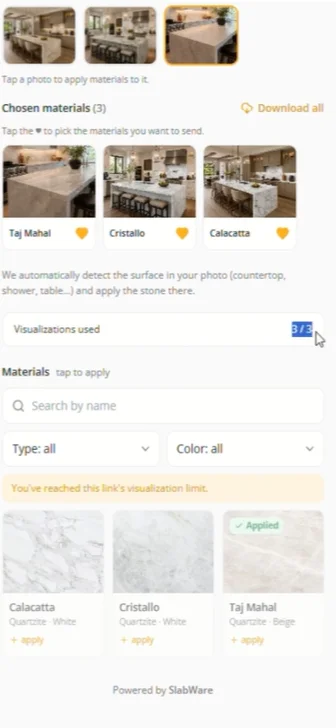
Send Selection to SlabWare Team: Clients click this button once they’ve picked their favorite material to notify your sales team.
💡 Client Limit Alert: Once a customer reaches their allocated visualization quota, as you can see in the previous image, above, a prompt notifies them that their attempts are complete. You can expand their limit at any time without creating a new link!
⚙️ Step 4: Managing Client Links, Limits, and PDF Summaries
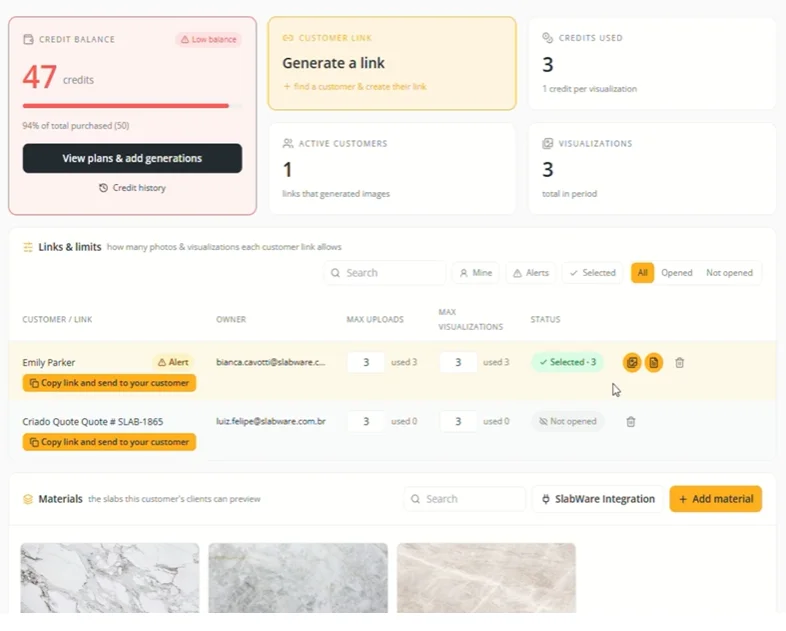
Inside your SlabSnap dashboard, you can track customer engagement under Links & Limits:
Adjust Quotas On the Fly: Increase or decrease upload/visualization limits for any active client and click Save.
View Renderings: Click the Image Icon next to a customer's name to see every image they created.
Export PDF Summary: Click the Document Icon to download a polished PDF report containing customer details, original room photos, rendered variations, and selected stone choices. Send this directly to the client as part of your quote package!
Filter Views:
Mine: Links created by your user profile.
Alerts: Clients who have hit their usage limit.
Selected: Clients who submitted their final material choices.
All: Every link generated across your entire team.
Opened / Not Opened: Track whether a client has opened their link.
📊 Step 5: Managing Credits & Subscription Plans
SlabSnap operates on a credit system where 1 credit = 1 image rendering. Credits belong to your overall company account, whereas limits control how many credits individual client links can spend.
Credit Packages
To purchase additional generations, click View Plans and Add Generations:
Plan | Price | Included Generations | Ideal For |
Starter | $49 | 100 Generations | Small shops testing visual sales |
Pro | $99 | 300 Generations | Growing fabricators with steady leads |
Business | $199 | 700 Generations | High-volume showrooms & multi-location yards |
Track your available balance, usage history, and purchase records at any time under the Credit History section.
💼 Step 6: Using SlabSnap Directly Inside Quotes & Invoices
You don't need to leave your sales workflow to send visualizers.
Open or edit any existing Quote or Invoice in SlabWare.
Under the Actions menu, click the SlabSnap button.
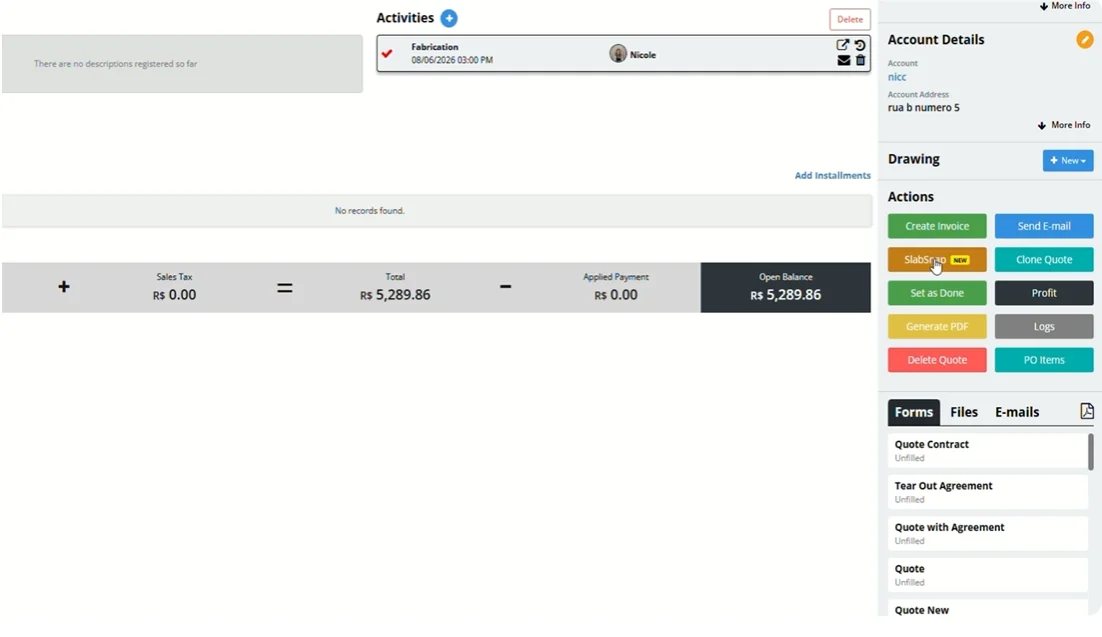
Generate and send a link pre-loaded with the specific materials listed on that quote.
This allows customers to see their shortlisted stones mapped directly onto their home before signing off on the contract—reducing hesitation, setting realistic expectations, and closing deals faster.
Elevate Your Stone Sales with SlabSnap
Stop relying on tiny physical samples and small digital swatches. Let your customers visualize their dream kitchen using your actual inventory.
👉 Visit SlabWare.com to schedule a demo today or reach out to our support team to activate SlabSnap for your account!
Keep reading