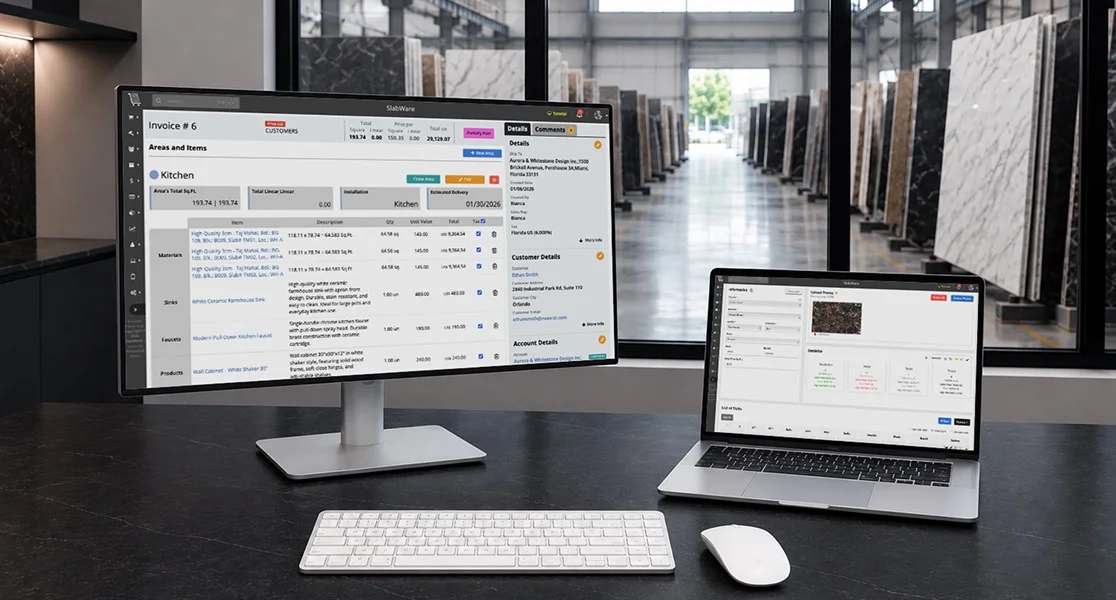

Managing supplier relationships, tracking material sources, and monitoring credits can quickly become messy when using spreadsheets or scattered emails. SlabWare simplifies this process by giving you a centralized hub to store supplier details, bank info, contact points, and material purchase history.
In this tutorial, you’ll learn step-by-step how to register a new supplier in SlabWare, manage their contact details, track credits, and analyze material performance reports.
If you want to watch this tutorial in our YouTube channel, simply click here.
📍 Step 1: Navigating to the List of Suppliers
Log into your SlabWare account.
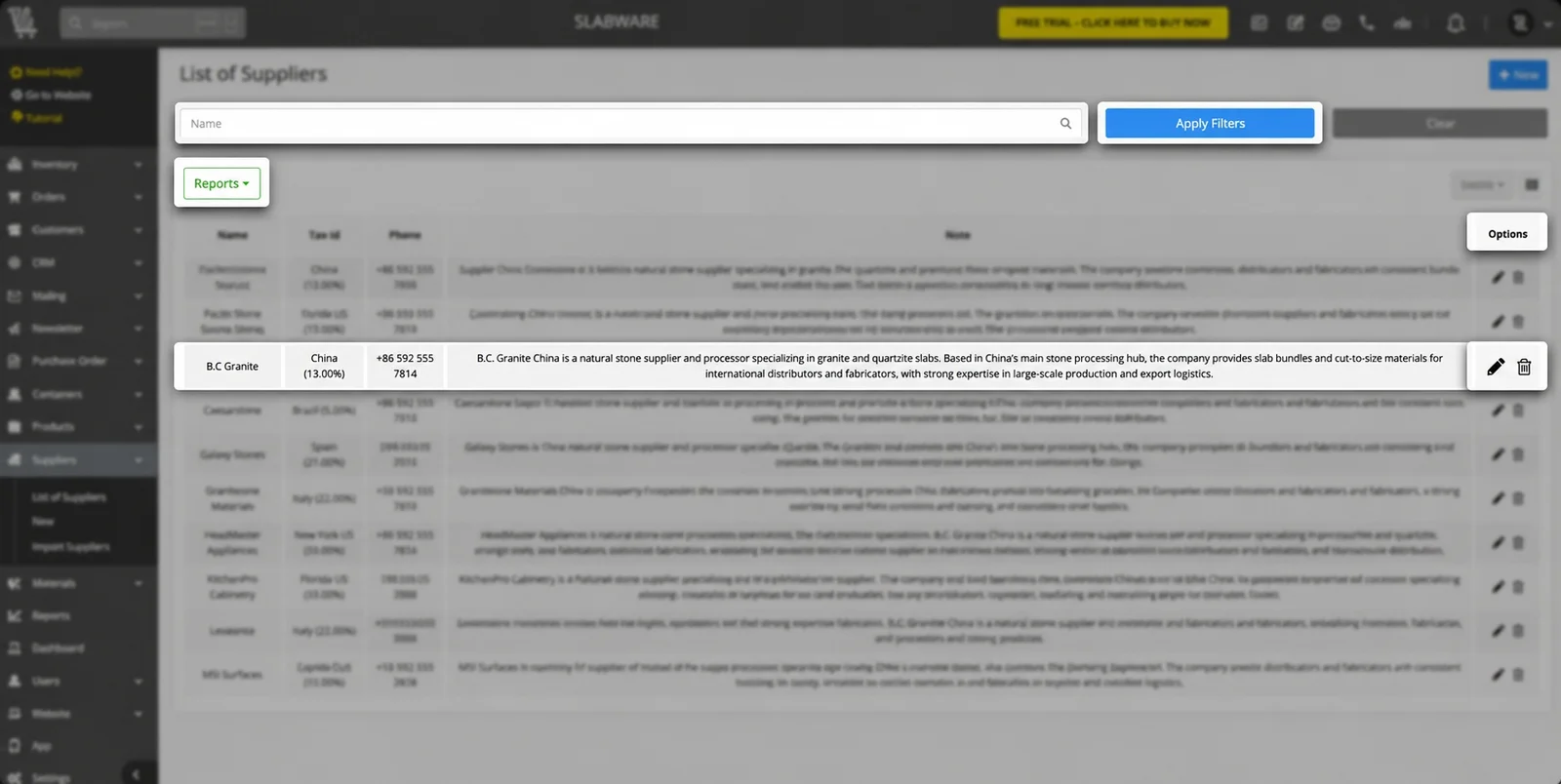
In the main menu, click List of Suppliers.
Here, you will see a complete directory of all suppliers currently supplying products or materials to your shop.
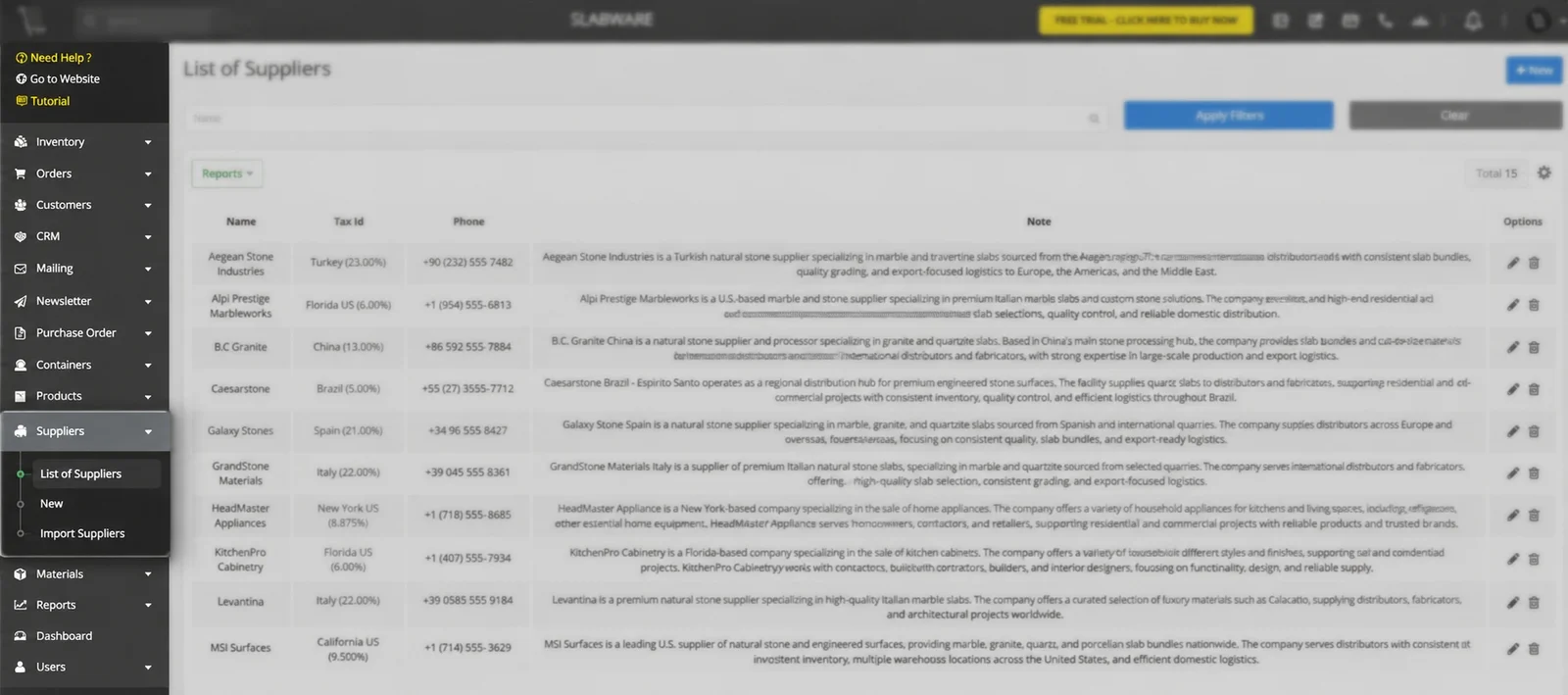
From this page, you can search, edit, or delete existing suppliers at any time.
➕ Step 2: Registering a New Supplier
To add a new vendor to your system:
Click + New in the main top menu, OR
Click + New in the upper right corner of the List of Suppliers page.
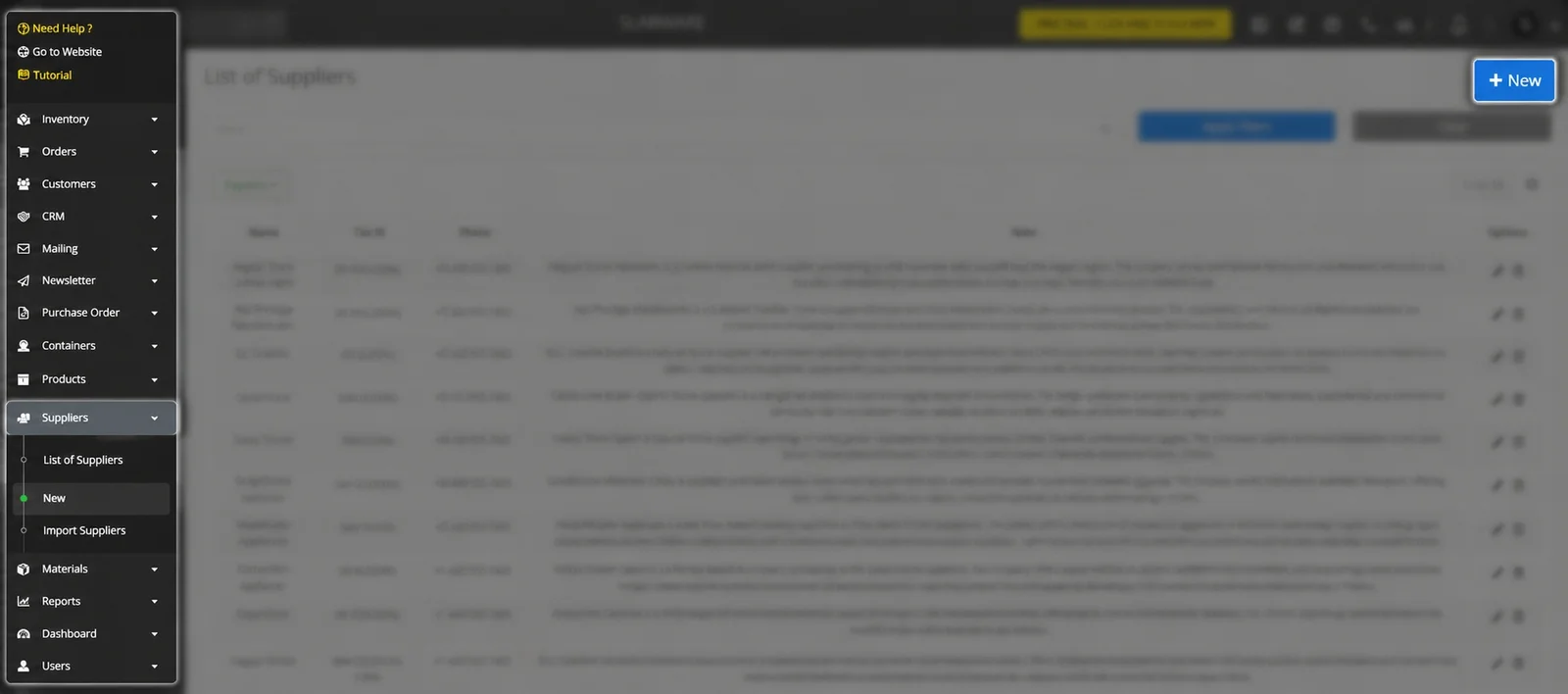
This opens the Add Supplier registration page.
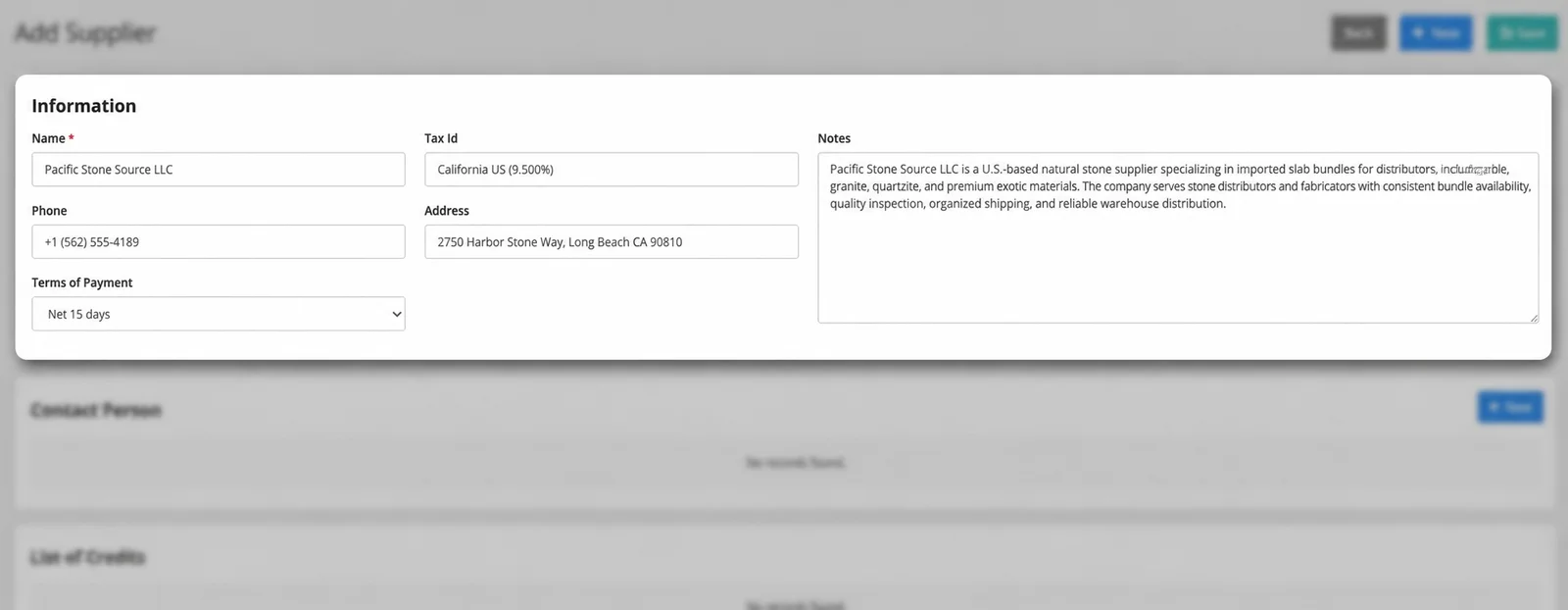
1. Basic Information
Fill in the essential business details:
Name: Enter the official business name of the supplier.
Tax ID: Enter their tax identification number.
Phone & Address: Add their primary contact phone number and physical business address.
Terms of Payment: Select the agreed payment terms from the dropdown (pre-configured in your system’s order setup).
Note: Add a brief internal note to help your team quickly identify the vendor in search results.
👤 Step 3: Adding Supplier Contact Persons
A single supplier often has multiple points of contact (e.g., sales representatives, accounts payable, logistics managers).
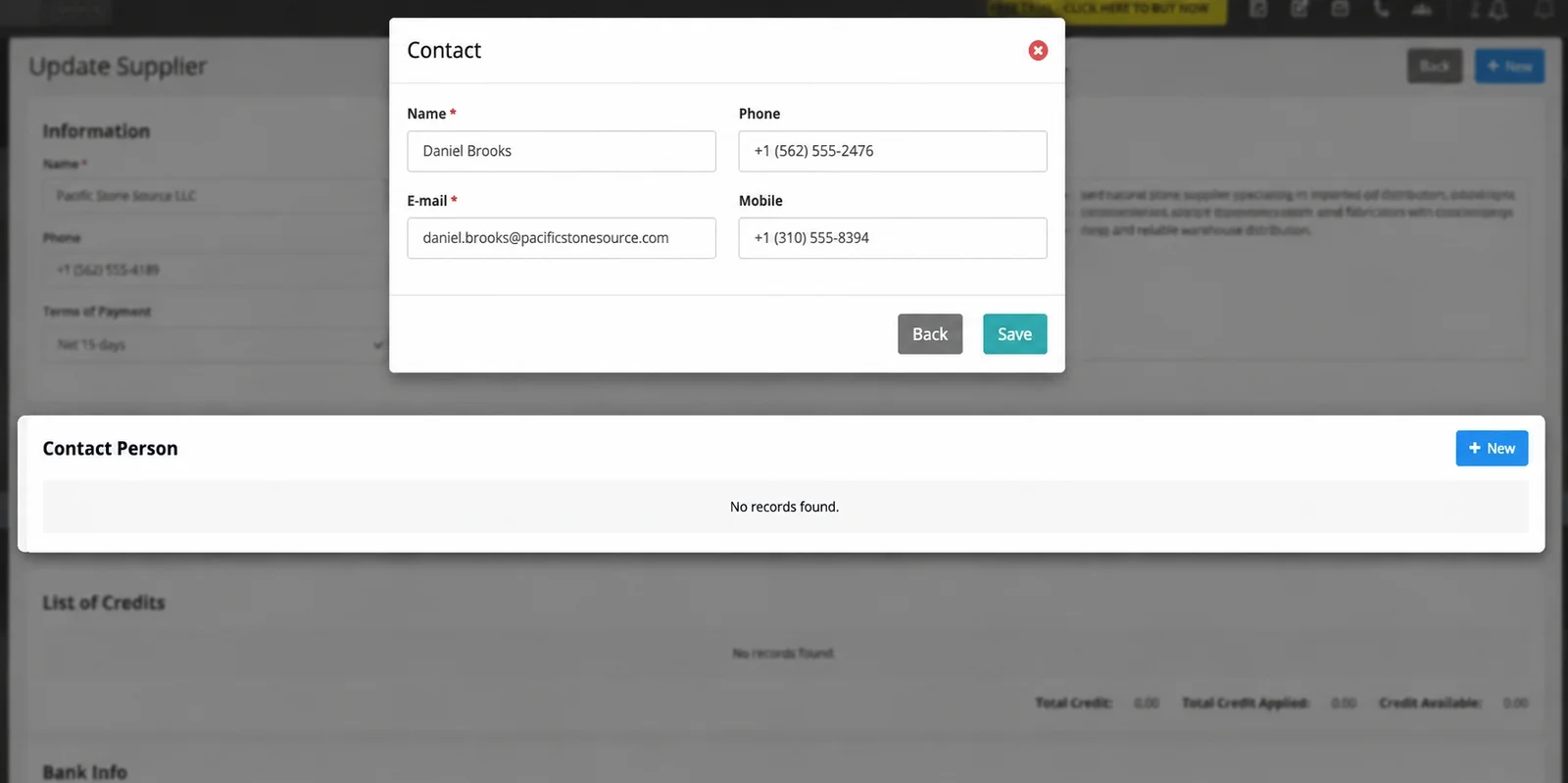
Scroll to the Contacts section.
Click + New.
Enter the contact’s Name, Phone, Email, and Mobile.
Click Save.
Need to add another contact? Click + New again and repeat the steps.
💳 Step 4: Tracking Supplier Credits & Bank Info
List of Credits (Automated)
You do not need to enter information manually in the List of Credits section. Whenever a credit is issued for returned material or containers linked to this supplier, SlabWare automatically registers and displays the balance directly on this page.
Bank Info
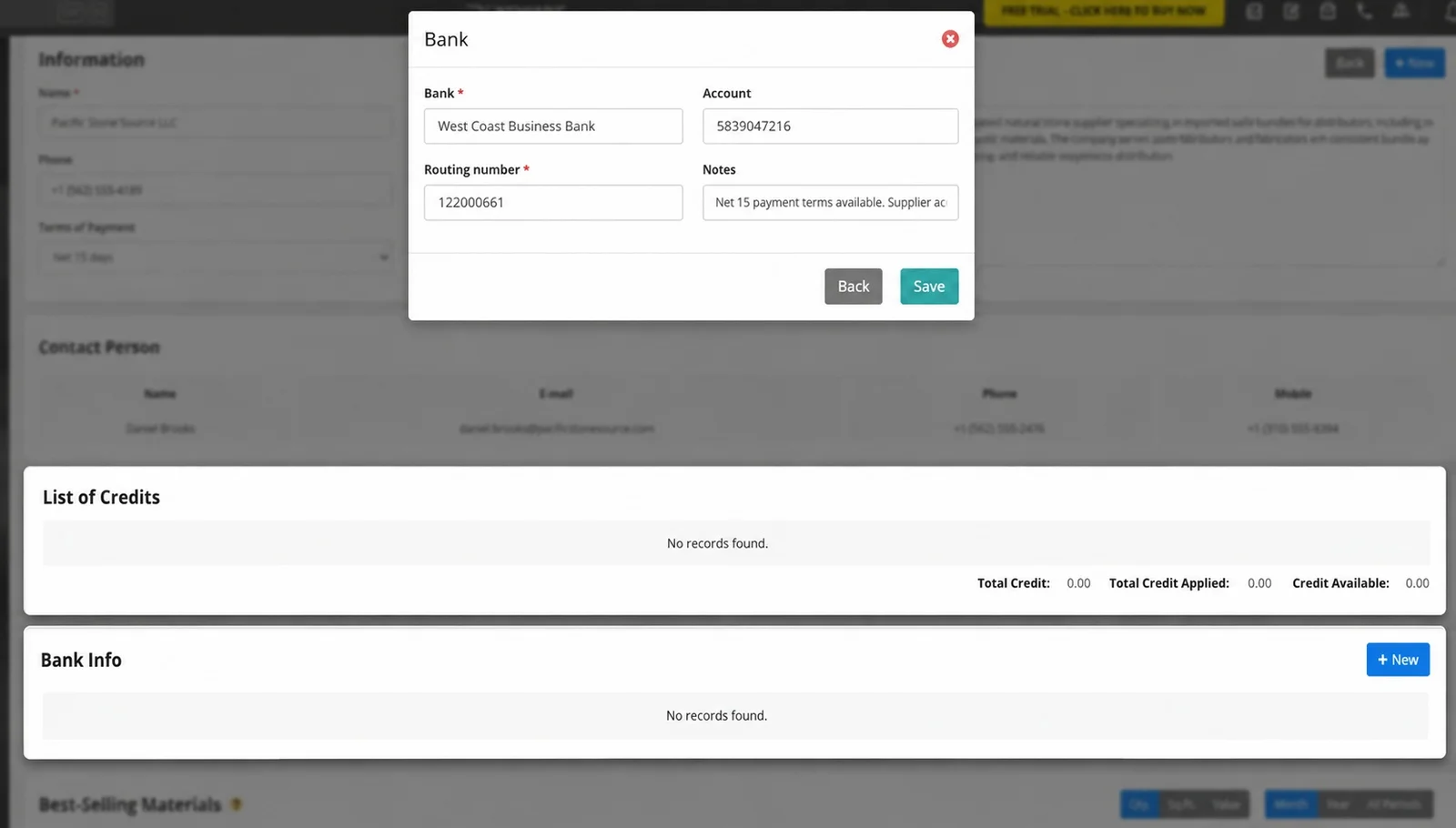
Keep your accounts payable process seamless by storing your vendor’s banking credentials:
Scroll to Bank Info and click Add New.
Fill in the Bank Name, Account Number, and Routing Number.
Add any specific transfer instructions in the Notes field.
Click Save.
📊 Step 5: Viewing Best-Selling Materials & Performance Data
The Best-Selling Materials section automatically tracks purchasing trends for each supplier without any manual data entry.
Visual Dashboard: View the materials you purchase most from this vendor analyzed by quantity, square footage, month, or year.
Exporting Data: Click Reports to download an Excel breakdown of this supplier’s performance and purchasing history.
💾 Step 6: Saving and Managing Your Supplier Directory
Once all information is entered:
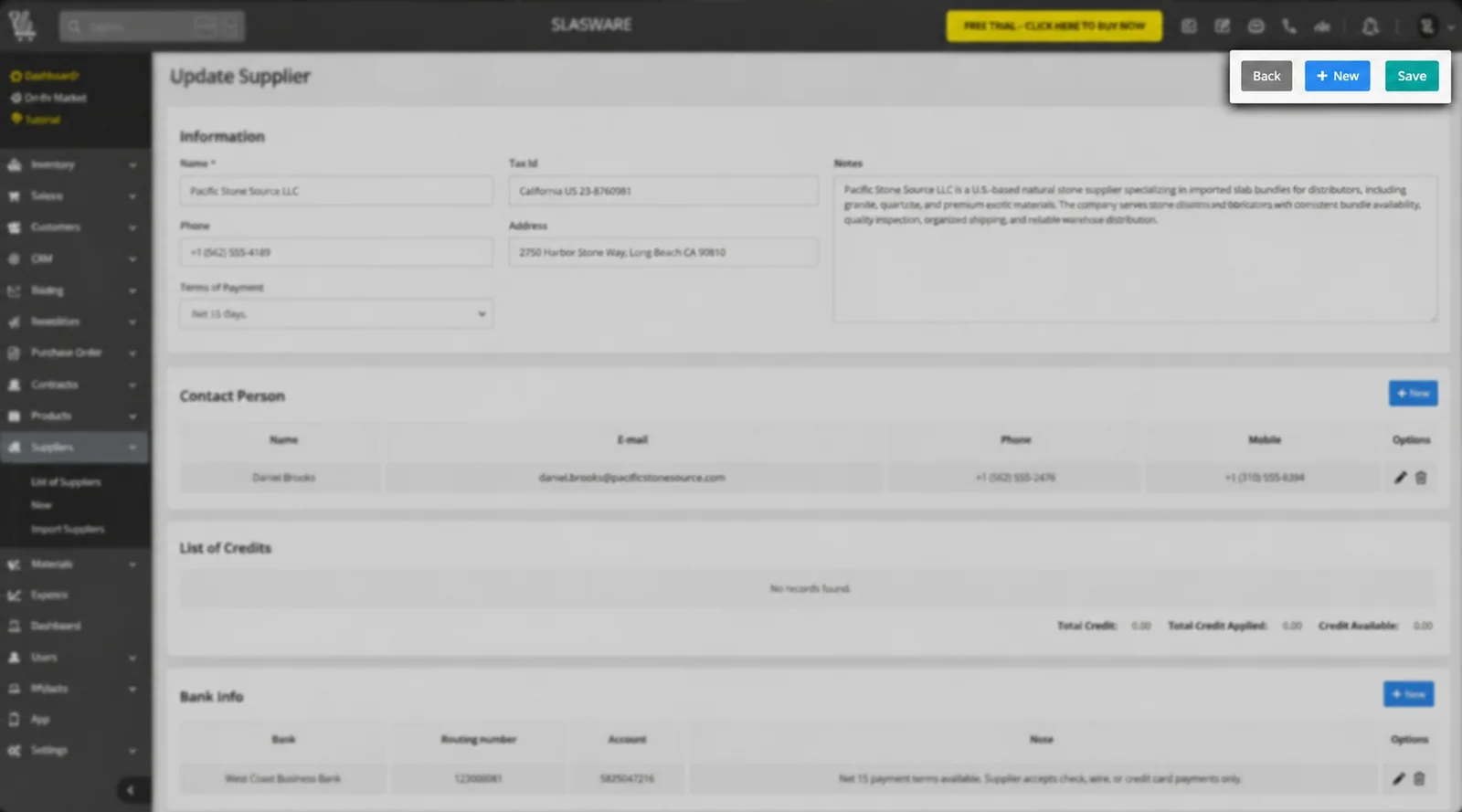
Click Save at the top of the page before navigating away.
Click Back to return to the main List of Suppliers page.
Managing Your Suppliers List:
✏️ Edit: Click the Pencil icon next to any supplier to update contact info or bank details.
🗑️ Delete: Click the Trash icon to remove a supplier from your list.
🔍 Filter & Search: Type a vendor name into the top search bar and click Apply Filter to narrow down your list.
📥 Export Full Reports: Click Reports with a filter applied to export data for a specific vendor, or clear all filters and click Reports to download a complete spreadsheet of your entire supplier directory.
Streamline Your Supply Chain with SlabWare
Keeping your supplier information accurate ensures smoother purchasing, faster material ordering, and complete visibility over container credits.
👉 Visit SlabWare.com to start your free trial today or reach out to our support team to see how SlabWare can streamline your stone business!
Or read other posts in our blog by clicking here.Keep reading